
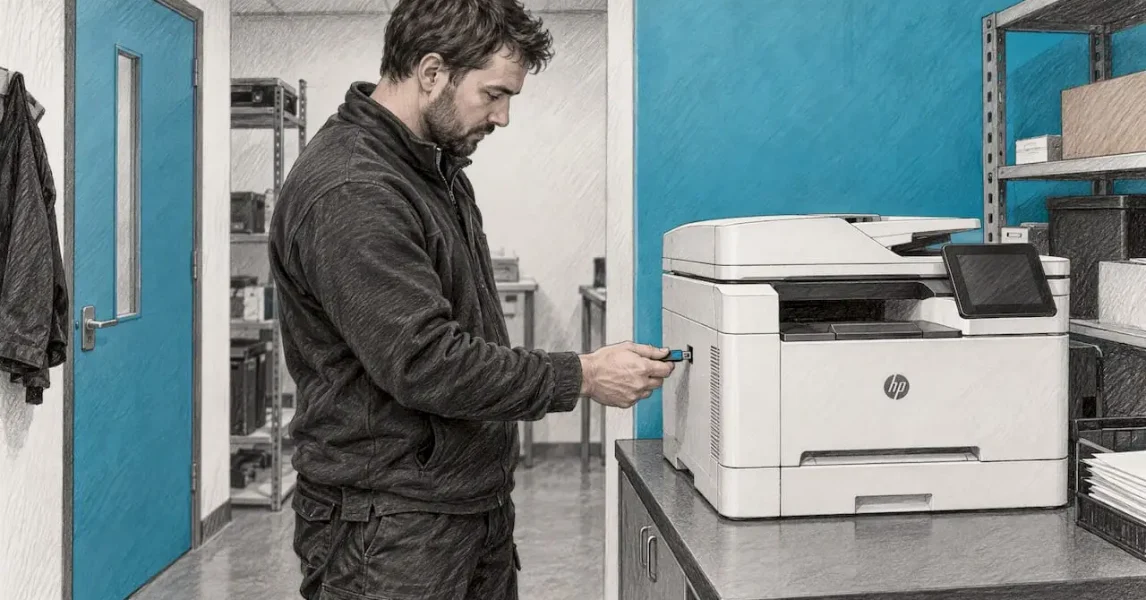
To update HP printer firmware, open the HP Smart app, select your printer, go to its Advanced Settings, choose Printer Update and click Check Now. You can also update from the printer’s control panel, or download the firmware from HP’s support site and run it from a computer. Whichever route you take, the one rule is the same: never switch the printer off while the update is running.
That covers most home users. In an office the questions go further: how do you know which version you are on, should updates be automatic, what if the update fails, and who is responsible for doing this across ten or fifty devices? This guide answers each of them in the order you are likely to meet them.
TL;DR
- Firmware is the built-in software that makes your printer work. HP releases updates to fix bugs, improve speed or print quality, add features and address security risks.
- The quickest method is the HP Smart app: open the printer’s Advanced Settings, then Printer Update, then Check Now. Other methods are the control panel, a downloaded installer, or a USB drive on supported models.
- Never turn the printer off mid-update. HP warns that doing so can cause permanent damage.
- If one method fails, try another before assuming the printer is faulty.
- For a fleet of office printers, updates are best handled on a schedule and recorded, not left to chance.
Table of Contents
- What HP printer firmware is and why it gets updated
- Check your current firmware version first
- Ways to update HP printer firmware
- Automatic updates: what happens and who decides
- Why an HP firmware update fails, and what to try
- Precautions before you start
- Updating a fleet of office printers
- Our perspective: firmware is a maintenance habit, not an emergency fix
- When it makes sense to hand this to us
- FAQ
- Sources
What HP printer firmware is and why it gets updated
Firmware is the software stored inside the printer that allows it to print and operate. HP describes it as written by its own software developers, with updates that can improve or extend functionality and help protect against evolving security risks.
The practical reasons are mundane. HP’s own support pages say it releases firmware regularly to fix bugs, improve print quality or speed, or add features such as compatibility with new file formats. If a printer suddenly rejects a file type, drops off the network after a Windows change, or shows an odd error code that others have already reported, a firmware update is a reasonable first thing to try.
Security is the reason that matters most in a business. A printer is a networked computer with storage, an operating system and, often, a scanner that sends documents to email or shared folders. Leaving it on old firmware leaves that computer on old software. We cover the wider picture in our printer security hardening plan, but keeping firmware current is the cheapest step in it.
One more point worth knowing. On printers with dynamic security, HP states that periodic firmware updates maintain measures that block cartridges without new or reused HP chips or circuitry. If your office uses non-HP cartridges, read the notes for your model before updating, because an update can change whether those cartridges keep working.
A separate point for anyone chasing poor output: firmware is only one cause. Streaky or faded pages are more often a consumables or settings problem, and a print quality workflow can help you separate what the file, the paper and the device each contribute before you blame the software.

Check your current firmware version first
Before you update anything, find out what you are running. HP’s guidance is to print a configuration page from the control panel menu, which shows the current firmware level, and then compare it with the latest version listed for your model on the HP support site.
On most business laser models the route is through the Reports or Setup menu on the control panel. Menu names vary by model, so if you cannot find it, search your exact model number on HP’s support site and read the guide for that device. The firmware revision is normally printed near the top of the page, alongside the model and serial number.
Write the version down, with the date. If something goes wrong later, knowing what the printer was running before the update makes it much easier to diagnose, and to roll back where the model allows it.
Ways to update HP printer firmware
HP lists three main routes: the HP app, the printer control panel when it is connected to the internet, or an installer downloaded from HP and run on a computer. Which one suits you depends on how the printer is connected and how many you manage.
Using the HP Smart app
This is the simplest route for a single printer on your network. HP’s steps are to open the HP Smart app and click your printer, open Advanced Settings (which opens the printer’s Embedded Web Server, or EWS), then click the Printer Update tile. If the tile is missing, go to Tools, then Printer Updates, then Firmware Updates. If asked for a PIN, it is on a label on the printer, typically inside the cartridge access area. Click Check Now and any available update installs.
Keep the printer powered and connected to the network until it has finished and restarted. The printer may reboot more than once.
From the printer’s own web page (EWS)
You do not need the app at all. Type the printer’s IP address into a browser on the same network, and you reach the same EWS. This is the route we prefer in offices, because the IP address can be reserved on your router or DHCP server, so the page is always in the same place. From there you can check for updates and, on supported models, adjust the automatic update settings.
Downloading the firmware from HP’s support site
If the printer cannot reach the internet, or the app route fails, download the file yourself. HP’s steps are to go to HP Support, choose Drivers and Downloads, enter your printer name or number, select your model, and pick the firmware listed. Run the installer on a computer connected to the same printer. HP states that manual updates can be done by downloading the latest firmware file from the official support website and installing it from a computer.
If the printer is connected to that computer by USB only, this is the method you need: HP notes that direct-to-printer methods do not work over USB, so you download the firmware and run the update utility from the connected computer.
Download only from HP’s own site, matching the exact model and, where relevant, the exact variant. A file for a similar-looking model is not a safe substitute.
Using a USB flash drive
Many business LaserJet and similar models can take firmware from a USB stick plugged into the printer. HP’s guidance for supported printers calls for a FAT32-formatted drive with at least 4 GB of storage. Copy the firmware file to the drive, plug it in, and on the control panel go to the update option in the printer’s maintenance or settings menu, select the file and confirm. Menu wording differs by model, so check the guide for yours.
This route suits locked-down offices where printers are deliberately kept off the internet. It is also slower when you have many devices, because each needs someone standing in front of it.
Automatic updates: what happens and who decides
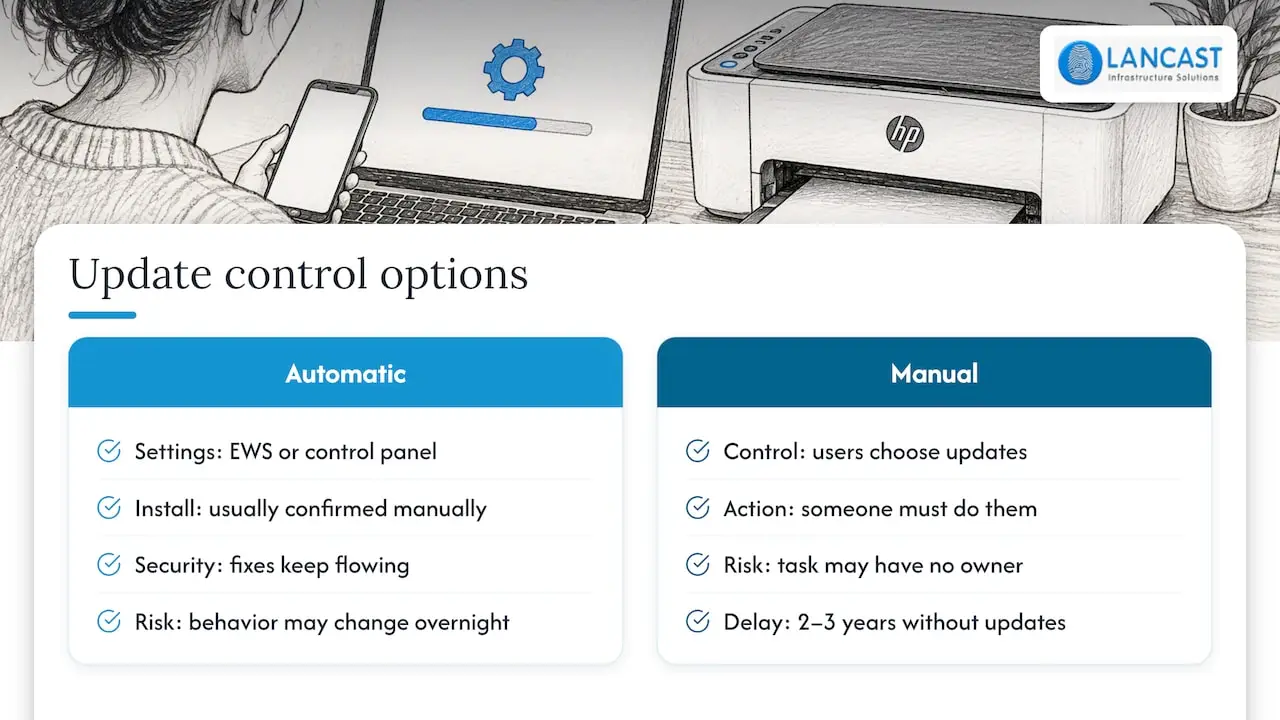
Many people ask whether HP printers update themselves. Partly. HP says you can set automatic download settings in the EWS or the control panel, though installation itself usually has to be confirmed manually on the models it describes. Behaviour varies by model and by whether the printer is enrolled in a service such as Instant Ink, so check the settings on your own device rather than assuming.
HP also notes that users not enrolled in programmes like Instant Ink can choose to control firmware updates themselves rather than receive them automatically.
For an office, the choice is a trade-off. Automatic updates keep security fixes flowing but can change behaviour overnight. Manual updates give you control, but only if someone actually does them. In our experience the manual option fails quietly: printers go two or three years without a single update because nobody owns the task. If you choose manual, put it in a calendar with a named person.
Why an HP firmware update fails, and what to try
The most common message is some version of an update that will not install, even after several attempts. Work through these in order.
- Try a different method. HP’s own advice is that if one update method does not work, try another, such as downloading the firmware from the HP website instead of using the app.
- Check the connection. The printer needs to be on the network and able to reach the internet for online updates. Confirm that it prints from another computer. If it has dropped off the network, our guide to printers that will not connect walks through the fixes.
- Allow for large files. HP warns that large update packages may affect your network or internet connection. On a busy office connection, run the update out of hours.
- Restart and retry. Power the printer down only when it is idle, not mid-update, wait a minute, switch on and check again.
- Use the firmware history. On some models the EWS keeps a firmware history that may let you reinstall the previously installed version if the current one causes trouble. This is not available on every printer.
If the printer still refuses, or shows a firmware error on the display and will not start, stop. Repeated attempts on a unit that is half-updated can make it worse. At that point it is a repair job, and our printer and multifunction repair service covers it.
Precautions before you start
The single most important instruction comes from HP directly: do not turn the printer off during an update. HP states that doing so can cause permanent hardware damage. Everything else on this list supports that rule.
Check that the power supply is stable. If the building has frequent brownouts or the printer sits on a shared extension, move it to a reliable socket for the update. Clear the print queue and tell staff the printer will be unavailable for a few minutes. Do not send jobs mid-update, and do not unplug network or USB cables.
Note what the update changes. Read the release notes on the HP download page for the model: they list the fixes and any changed behaviour. If the printer is a business-critical machine, such as the one that prints delivery notes or invoices, test the update on a less important printer of the same model first.
Updating a fleet of office printers
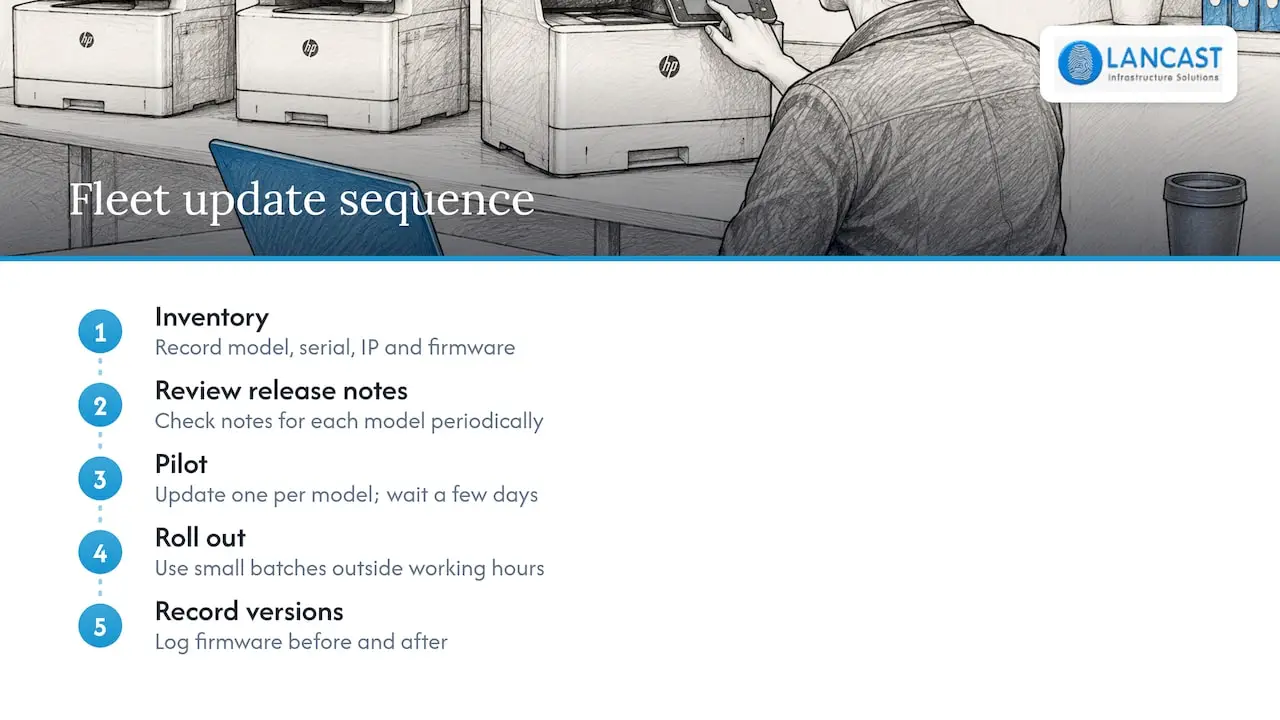
One printer is a ten-minute job. Thirty across several floors, or several sites, is a project with real risks: different models need different files, some are on isolated networks, and each update is a point where something can fail.
A sensible routine looks like this. Keep an inventory with model, serial number, IP address and current firmware. Review HP’s release notes for each model periodically. Update one pilot printer per model, wait a few days, then roll out the rest in small batches outside working hours. Record the version before and after. Enterprise HP printers on FutureSmart firmware are designed to be upgraded over time, similar to PC operating systems, which extends the hardware’s usable life and keeps the interface consistent between models, so staff need little retraining.
This is also where printer firmware meets wider security. Admin passwords, unused network services and open ports matter as much as the version number. Our office printer security tips set out the basics, and the 30/60/90 hardening plan turns them into a schedule for IT managers.
Our perspective: firmware is a maintenance habit, not an emergency fix
We have supported Irish organisations for around thirty years, and the pattern with printers is consistent. Firmware gets attention only when something breaks: a scan-to-email feature stops after a Windows update, or a printer starts throwing an error nobody recognises. By then the update is a rescue, done in a hurry, often by whoever happens to be nearby.
The better approach is to treat printers as part of the network estate, the same as servers, switches and laptops. They should be in the asset list, in the monitoring, and in the update schedule. A printer that is a year or two behind on firmware is rarely a crisis, but it is an avoidable gap, and avoidable gaps are the ones that tend to be exploited.
Our advice, in short: update on a schedule, test on one device first, never interrupt an update, and keep a record. If your printers are old enough that HP no longer publishes updates for the model, that is a replacement conversation rather than a patching one. For businesses with a handful of devices and no IT person, we would rather take the routine off your hands than have it wait for the next fault.
— Carl
When it makes sense to hand this to us
If you would rather not track firmware, drivers and release notes across your printers, we can do it as part of a managed services plan. Our Silver, Gold and Platinum support levels combine proactive monitoring with remote and onsite support, and we maintain printers, photocopiers and multifunction devices alongside your computers and network. Our team is based in County Wicklow and works with businesses across Ireland. If you are buying new devices, we also supply HP printers with installation included, so they arrive configured and on a sensible update setting from day one. Get in touch through lancast.ie and we will tell you what would suit your set-up.
FAQ
Is an HP firmware update necessary?
Not always urgently, but it is worth doing. HP releases updates to fix bugs, improve performance, add features and help protect against security risks. If your printer works well and you are not affected by a specific fix, you can schedule the update rather than rush it, but do not leave it for years.
How do I know if my HP printer firmware is up to date?
Print a configuration page from the control panel to see the installed version, then compare it with the latest firmware listed for your exact model on HP’s support site. In the HP Smart app, the Printer Update option in Advanced Settings also checks for you.
Do HP printers update firmware automatically?
Some do, depending on the model and settings. Automatic downloads can often be configured in the EWS or on the control panel, but installation may still need confirming. If you want full control, you can turn automatic updates off in the printer’s update settings.
Why can’t I update the firmware on my HP printer?
The usual causes are a poor network connection, a large file on a busy connection, or a method that does not suit your model. Try another method, such as downloading the firmware from HP’s website and running it from a computer. If it still fails, or the printer shows a firmware error, get it looked at rather than retrying repeatedly.
Sources
- HP Printer Firmware Updates – What They Are and What They Do (HP)
- Official HP Drivers and Software Download (HP Support, Ireland)
- Update the firmware on an HP printer (HP Support)
- Update the firmware on an HP printer (HP Support, Ireland)
- HP LaserJet: Update the printer firmware (HP Support)
- Update the firmware (HP Support)
- Firmware Update, HP PageWide XL Pro 5200/8200 MFP (HP Support, Ireland)
- HP FutureSmart firmware (HP)