

IMAP keeps your mail on the server and synchronises it across every device you use, while POP3 downloads messages to one device and, by default, removes them from the server. For almost every business with more than one person, one laptop and a phone, IMAP is the right choice. POP3 still has a narrow place, and in a Microsoft 365 environment neither is the best long-term answer.
This guide explains how each protocol behaves, how to tell which one your account uses, and what to do when Outlook stops searching, sending or accepting your password. We have supported Irish organisations with their email for 30 years, and most of the questions below reach our helpdesk in one form or another.
TL;DR
- POP3 downloads mail to a single device and normally deletes it from the server. IMAP leaves mail on the server and keeps every device in step.
- Choose IMAP for any staff member who reads email on more than one device, and POP3 only for a single-machine, offline archive.
- Neither protocol sends mail. Outgoing messages always travel by SMTP, which is a common cause of “Outlook not sending” problems.
- Microsoft has removed Basic authentication for POP and IMAP in Exchange Online, so repeated password prompts usually point to an older client or device that lacks modern sign-in.
- For a Microsoft 365 business, the strongest setup is native Exchange connectivity in Outlook, with IMAP kept for the few devices that need it.
Table of Contents
- What IMAP and POP3 actually do
- IMAP vs POP3 side by side
- Which one should your business use?
- Why neither protocol sends your email
- How to tell whether your account is IMAP or POP3
- The modern wrinkle: sign-in has changed
- Fixing common Outlook problems that look like protocol problems
- Our perspective
- A practical checklist for moving off POP3
- Where we can help
- FAQ
- Sources
What IMAP and POP3 actually do
Both protocols exist for one job: getting email from the server that holds your mailbox into the app you read it in. They are the “incoming” side of email. Where they differ is in what they do with the mail once it has been retrieved.
POP3, the Post Office Protocol, was designed for a time when people dialled in, collected their messages and read them offline. It fetches messages to one device and, by default, removes them from the mail server. That makes it simple, but it also means the copy on your laptop may be the only copy.
IMAP, the Internet Message Access Protocol, treats the server as the master copy. Your laptop, phone and tablet all show the same view of the mailbox. Read a message on your phone and it shows as read on your desktop. Move it to a folder and the folder change appears everywhere.
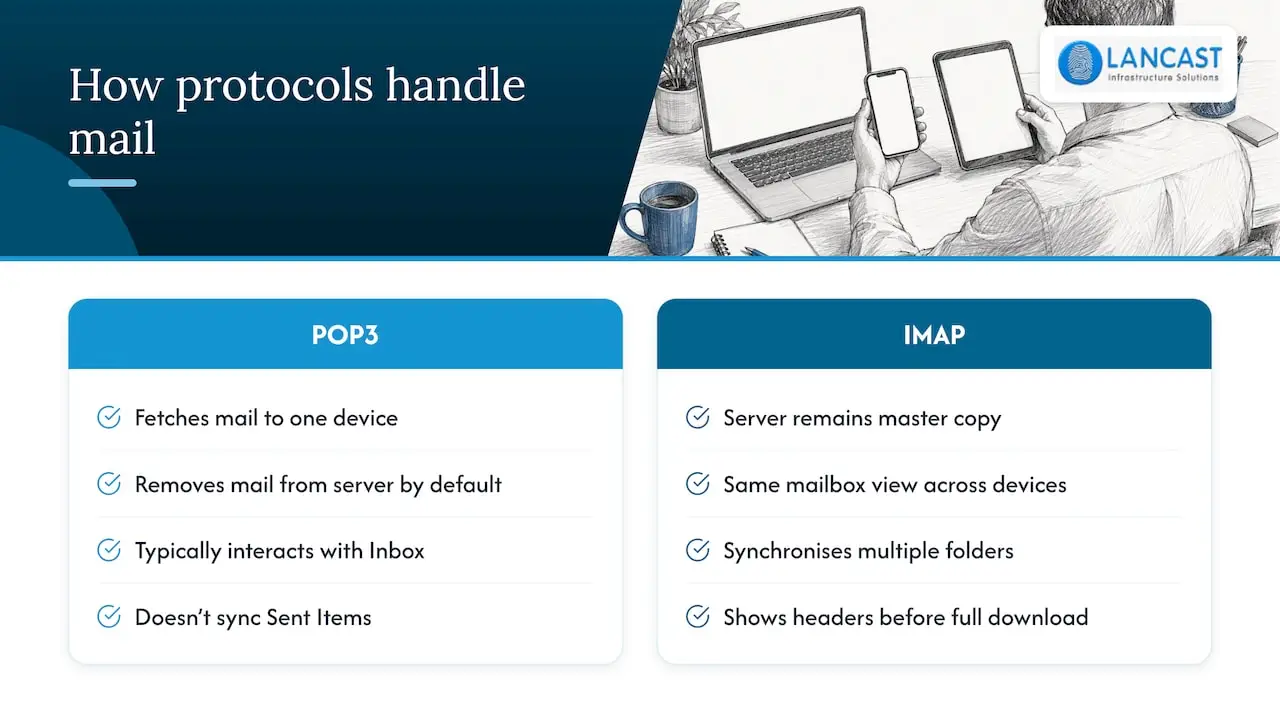
Microsoft’s documentation notes a further difference: IMAP4 supports synchronising multiple folders, while POP3 typically only interacts with the Inbox and does not synchronise folders such as Sent Items. IMAP also lets a client show message headers before downloading the full content, which helps on a slow connection or when a large attachment is waiting.
IMAP vs POP3 side by side
| Feature | POP3 | IMAP |
|---|---|---|
| Where mail lives | Downloaded to one device, usually removed from the server | Stays on the server, devices show a synchronised view |
| Multiple devices | Poor: each device may hold a different part of the mailbox | Designed for it |
| Folders | Inbox only in practice | Full folder structure synchronised |
| Sent items | Not synchronised | Synchronised |
| Backup | Depends on your own device backups | Server copy is covered by the mail host’s backups |
| Offline reading | Everything already downloaded | Cached messages only, depending on client settings |
| Server storage use | Low if mail is removed | Higher, as mail accumulates in the mailbox |
| Typical encrypted ports (Exchange Online) | 995 | 993 |
The ports in the last row are the Exchange Online settings for SSL/TLS connections, with SMTP on port 587 using STARTTLS. Other providers publish their own values, so check your host’s instructions before you copy these.
Which one should your business use?
The decision is simpler than most guides make it look. Ask three questions.
Does anyone read email on more than one device?
If the answer is yes for even one person, use IMAP. A sales manager who checks messages on a phone in the car and a laptop in the office will otherwise find that mail collected by the phone has gone missing from the laptop, or that replies sit in a Sent folder on the wrong machine.
Who is responsible if a laptop fails?
With POP3, a mailbox that has been downloaded and removed from the server exists only on that device. If the machine is lost, stolen or fails, the mail goes with it unless the machine itself was backed up. With IMAP, the server holds the mail, so a replacement laptop can be configured and the mailbox reappears. Your mail host’s backups then also become part of your protection, which is one reason we treat email as part of the wider backup and data recovery conversation rather than a separate topic.
Do you have a reason to keep mail off the server?
There are a few. A very small mailbox quota on cheap hosting, a single dedicated machine that processes incoming orders, or an archive workstation that must retain a local copy can all justify POP3. Even then, many administrators choose to leave a copy on the server for a set number of days, which gives you a safety net without filling the mailbox.
For everyone else, IMAP is the default we recommend. It also performs well when the client supports the IMAP IDLE command, which lets the server tell the client about new messages as they arrive, so the app does not have to poll the server repeatedly and drain the battery on a phone.
Why neither protocol sends your email
A frequent misunderstanding is that choosing IMAP or POP3 controls how mail leaves your computer. It does not. Both protocols rely on SMTP for outgoing mail. In Exchange Online, that means authenticated submission, known as SMTP AUTH, which POP3 and IMAP4 clients use to submit messages.
This matters when you troubleshoot. If Outlook receives mail happily but messages sit in the Outbox, the incoming settings are not your problem. Look at the outgoing server name, the port, the encryption type and whether the account is allowed to authenticate for SMTP. It is also worth checking that a large attachment is not blocking the queue, because one oversized message will hold up everything behind it until you remove or resend it.

How to tell whether your account is IMAP or POP3
In Outlook for Windows, open File, then Account Settings, select your email account and choose Change. The account type is shown on that screen as IMAP, POP3 or Microsoft Exchange. Many people are surprised to find IMAP on a mailbox they assumed was Exchange, or POP3 on an account set up years ago by a previous supplier.
A second clue is behaviour. If your Sent Items on the laptop do not appear on your phone, or you have to delete the same message in two places, you are very likely on POP3. If everything appears everywhere but you still see a separate set of folders for the account, you are on IMAP.
On a mobile device, look in the account settings for the incoming mail server name. It usually begins with “imap” or “pop”, which gives the answer immediately.
The modern wrinkle: sign-in has changed
The protocols themselves have barely changed, but the way they authenticate has. Microsoft has removed Basic authentication in Exchange Online for POP, IMAP, Exchange ActiveSync and several other protocols. Clients now need to use Modern authentication based on OAuth 2.0, and Microsoft publishes guidance for authenticating IMAP, POP and SMTP connections with OAuth.
In practice, an older mail client, scanner, multifunction printer or line-of-business application that only knows how to send a username and password will fail to connect even when the password is correct. The fix is to update or replace the software or device, not to reset the password again and again.
Google has taken a similar path. Google Workspace accounts no longer support less secure apps from 1 May 2025, so third-party clients need to sign in in a way Google accepts.
The security reasoning is sound. The UK’s National Cyber Security Centre points out that email accounts are a common target because one inbox often gives access to other systems and sensitive information, and that protecting how users sign in is one of the most effective ways to reduce the risk of compromise. That guidance is written for the UK, but the advice on sign-in applies equally to Irish firms, which have their own GDPR duties to protect personal data held in mailboxes. If you want the practical side, our guides on MFA for Microsoft 365 and what an email security audit should check walk through it.
Fixing common Outlook problems that look like protocol problems
Searches for IMAP and POP3 are often really searches for a fix. These are the issues we see most, with the likely cause in each.
Outlook keeps asking for a password
The usual cause is a client or account still relying on Basic authentication. Microsoft’s support community describes recurring password prompts in Outlook for people who signed in to Outlook.com with Basic authentication around the September 2024 change. Start by updating Outlook to the current version, then remove and re-add the account so it signs in through the Microsoft sign-in window rather than a stored password.
If the prompt continues, check for an expired or recently changed password, a multi-factor sign-in that was never completed on that device, and a conditional access policy that blocks legacy sign-in. In a business tenant, the last of these is the one an administrator needs to look at.
Outlook search not working
Search problems are more often about the local index than about POP3 or IMAP. With IMAP, Outlook only searches what it has cached on the device, so if your cache window is set to a few months, older messages will not appear in local results. Widen the sync setting for the account, rebuild the Windows search index, and allow time for it to finish on a large mailbox.
With POP3, search works on the downloaded data file, so a damaged or oversized data file is a common culprit. If a mailbox has grown to many gigabytes, moving to a server-based mailbox is a better fix than repeated repairs.
Outlook not sending
As covered above, sending is an SMTP matter. Check the outgoing server, port 587 with STARTTLS where your provider uses it, and that the account is permitted to use authenticated submission. Confirm that no message in the Outbox is stuck, and test the same account in a web browser. If webmail sends but Outlook does not, the problem is in the client configuration. If neither sends, the problem is with the account or the service.
Slow or delayed mail
A delay of several seconds when connecting by POP or IMAP to Exchange Online is expected behaviour, because a proxy layer checks which server holds the mailbox before it authenticates you. Longer delays are worth investigating on the network side. Weak wireless coverage, a congested link or poorly terminated cabling can all make email feel unreliable, which is why we look at the network as well as the mailbox. Our network design and installation work often starts with exactly this kind of complaint.
Our perspective
We are a Microsoft Cloud Service Provider and an HP Amplify Partner, and email is one of the first things a new client asks us to look at. Our experience is that the IMAP versus POP3 question is rarely the real problem. The real problem is that nobody owns the email setup. It was configured years ago, it works for most people, and the odd device or user is quietly working around its limits.
We would put it this way. If you run Microsoft 365, your staff should connect through Outlook’s native Exchange connection, not through POP3 or IMAP, because that gives you full folder, calendar and contact synchronisation along with modern, multi-factor sign-in. Microsoft itself advises that organisations move away from POP and IMAP where possible, since these older protocols do not support the full feature set of modern email services. IMAP then becomes the exception, kept for a specific device, and each exception is documented rather than forgotten.
We also encourage clients to treat the mail protocol as part of a wider security picture. Moving from passwords alone to multi-factor or passwordless authentication removes more risk than any choice between IMAP and POP3. Backups, phishing protection and a sensible password policy matter more, and we would rather help you get those right than tune a protocol that is on its way out.
Where a business is genuinely tied to a legacy device, such as an old scanner or a specialist application, we test whether it supports Modern authentication, and if it does not, we advise on a supported replacement or a safe relay arrangement. We prefer to say plainly that a device has reached the end of its useful life than to leave you with a workaround that breaks on the next change.
— Carl
A practical checklist for moving off POP3
If your business still has POP3 accounts, the move to IMAP or Exchange can be done without losing mail, provided you follow the order below.
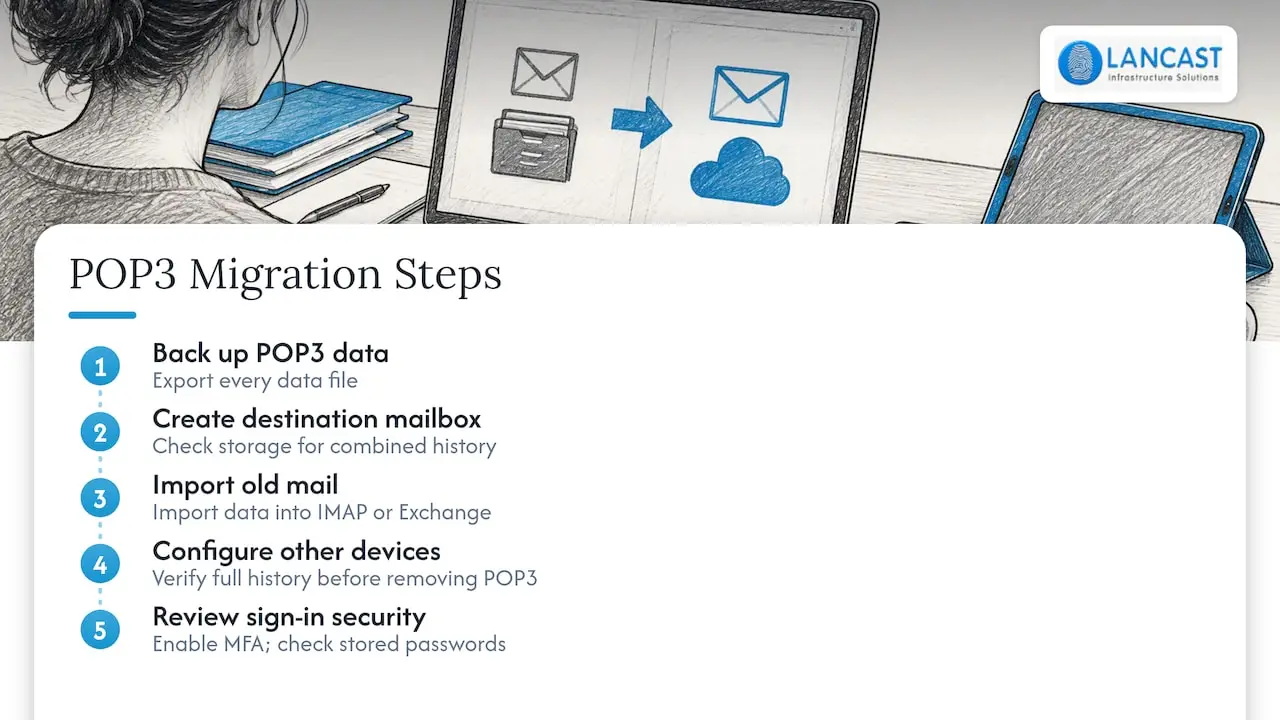
First, back up the existing data. Export every POP3 data file from each device to a safe location before you change anything, because for POP3 the local file may be the only copy of that mail.
Second, create the destination mailbox on the server, either as a Microsoft 365 mailbox or as an IMAP mailbox with your host. Confirm there is enough storage for the combined history, since a mailbox that previously lived on a laptop can be large.
Third, import the old data into the new mailbox. Outlook can import a data file into an IMAP or Exchange mailbox, and the folders then appear on every device once synchronisation completes.
Fourth, set up every other device from scratch using the new account type, and remove the old POP3 profile only after you have confirmed that the new one shows the full history. Leave a short overlap period so that nothing sent to the old configuration is missed.
Finally, review sign-in. Turn on multi-factor authentication, check that no device still relies on a stored password, and make a note of any device that needs replacing. If you are planning a wider move, our cloud migration checklist covers the security steps you can outsource.
Where we can help
If your mailboxes are a mixture of POP3, IMAP and Exchange, or your team is stuck in a cycle of password prompts and stuck messages, this is the kind of problem our managed services are built to remove. We handle the migration, the sign-in security and the monitoring that keeps it working, with remote and onsite support from our team in Bray, County Wicklow. You can read about our managed support plans and our Microsoft 365 and cloud services, or talk to us about a review of your current email setup.
FAQ
Is IMAP better than POP3?
For most businesses, yes. IMAP keeps the master copy of your mail on the server and synchronises it across all your devices, so you see the same inbox, folders and sent items everywhere. POP3 suits a single machine that needs a local archive, but it carries more risk if that machine fails.
Can I use both IMAP and POP3 on the same mailbox?
Technically you can, but it usually creates confusion. A POP3 client may remove messages from the server before an IMAP device has seen them, unless it is told to leave a copy. Pick one protocol per mailbox, or better still use native Exchange connectivity if you are on Microsoft 365.
Do IMAP and POP3 send email as well?
No. Both only retrieve mail. Outgoing messages go through SMTP, which has its own server name, port and authentication settings. If your messages will not send, check those settings and not the incoming ones.
Why does Outlook keep asking for my password with IMAP?
Most often the client or device is using an older sign-in method that Microsoft has retired for POP and IMAP in Exchange Online. Update Outlook, remove and re-add the account so it uses the Microsoft sign-in window, and ask your administrator to check conditional access and multi-factor settings if the prompt returns.
How do I know whether I have an IMAP or POP3 account?
In Outlook for Windows, go to File, Account Settings, select the account and choose Change to see the account type. If your sent items and folders match across devices, it is almost certainly IMAP or Exchange.
Sources
- POP3 and IMAP4 in Exchange Online, Microsoft Learn
- Deprecation of Basic authentication in Exchange Online, Microsoft Learn
- Enable or disable SMTP AUTH in Exchange Online, Microsoft Learn
- Authenticate an IMAP, POP or SMTP connection using OAuth, Microsoft Learn
- MS 365 Outlook POP settings change, Microsoft Q&A
- About IMAP and POP clients, Google Workspace Admin Help
- Small organisations guide to cyber security: secure your email, NCSC