
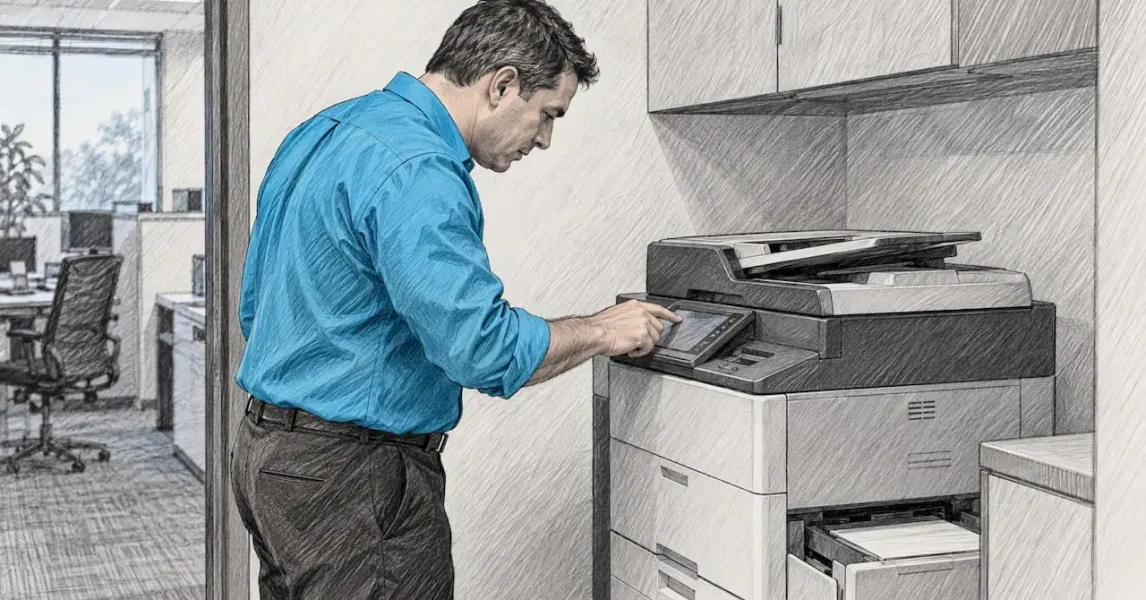
When a printer stops connecting, the cause is almost always one of four things: the physical or wireless link, the network address the printer is using, the Windows print spooler, or a driver that no longer matches the device. Work through them in that order and most faults are found in under half an hour. This guide sets out the sequence we follow with Irish businesses, explains what each check tells you, and shows you where the fault stops being a quick fix and becomes something your IT support should own.
TL;DR
- Start with the basics: power, cable or Wi-Fi signal, and whether another device can print. That one test tells you whether the fault is the printer, the PC or the network.
- A printer showing “offline” while switched on is usually a changed IP address, a stuck print queue or a stopped Print Spooler service, not a broken printer.
- On Wi-Fi, check the printer is on the same network as your computer, within range, and not on a guest network that needs a web login.
- If several users in the office lose the printer at once, stop fixing individual PCs and look at the network, the router or the print server.
- Printers are network devices that need patching and sensible settings, so a recurring connection problem is a good moment to put them under proper management.
Table of Contents
- Find out where the fault sits before you change anything
- Check the physical or wireless connection
- Why a switched-on printer shows as offline
- Fix the Windows print spooler
- Drivers: the cause behind “driver is unavailable” and blank pages
- When Windows cannot find or add the printer
- When the whole office loses the printer
- Why a connection problem is also a security question
- Our perspective: printers are the most under-managed devices in the office
- How we help when the fixes above are not enough
- A short checklist to keep by the printer
- FAQ
- Sources
Find out where the fault sits before you change anything
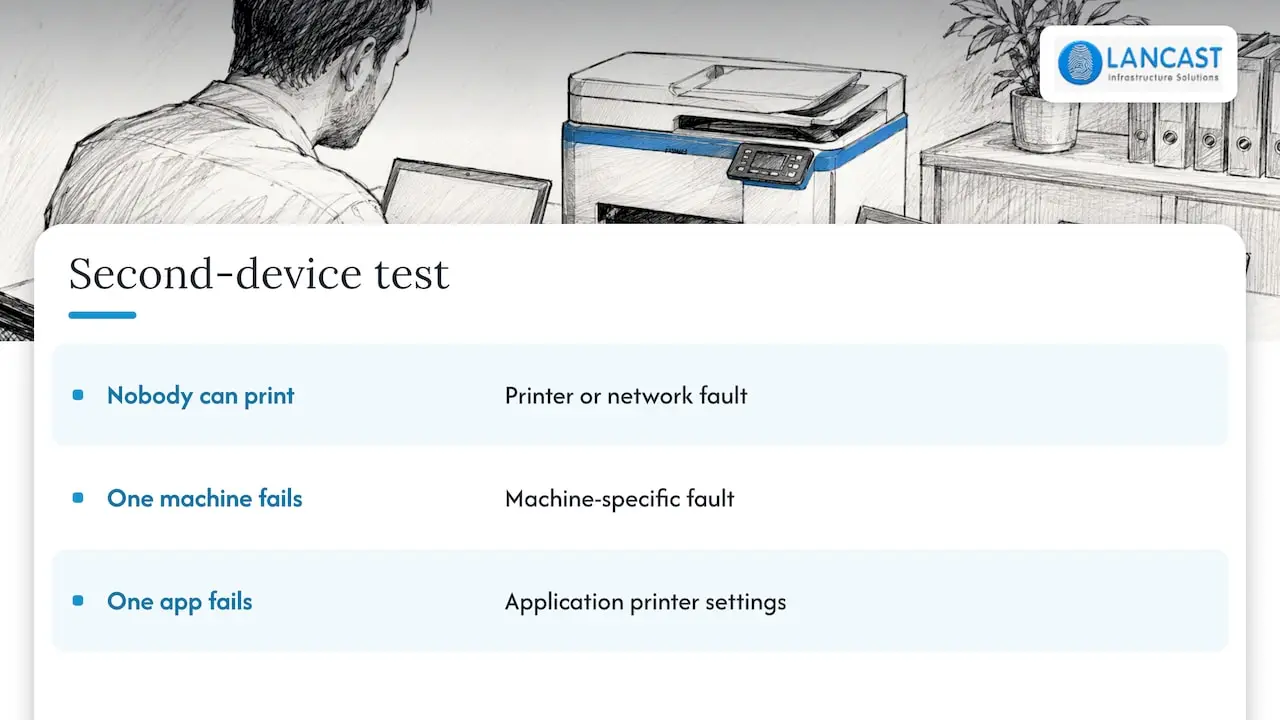
The most useful first step costs nothing: try to print the same document from a second computer or a phone. The result splits the problem cleanly.
If nobody can print, the fault is in the printer or the network. If only one machine fails, the problem is on that machine: its driver, its printer port, its spooler or its network settings. If one person fails only from one application, it is usually that application’s printer settings.
Also look at the printer’s own display. A printer that is asleep, showing a paper jam, or sitting in an error state will appear “not connected” to Windows even though the network is fine. Clear any message on the panel first, then print a configuration or network status page from the printer’s menu. That page shows you the IP address, the network name it has joined and whether it is connected, which is the information you need for everything below.
Before you go further, write down three things: the printer’s IP address from that page, the Wi-Fi network or switch port it uses, and the exact wording of the error on the computer. “Windows cannot connect to the printer”, “driver is unavailable” and “printer offline” point to different causes, and the wording will save you time.
Check the physical or wireless connection
It sounds obvious, and it is still the cause more often than people admit.
USB and wired network printers
For a USB printer, try a different cable and a different port on the PC, ideally directly on the computer rather than through a hub or docking station. Cables loosen, and docks sometimes drop power to ports.
For a printer on an Ethernet cable, look at the link lights where the cable enters the printer. No light, or a light that flickers on and off, points to a faulty patch lead, a dead wall port or a switch port that has failed. Swap the patch lead for one you know works and try another port on the switch. If the wall outlet is dead or the cable run is old and unreliable, that is a cabling problem rather than a printer problem, and it belongs with whoever maintains your structured cabling and infrastructure.
Wi-Fi printers
Wireless printers fail in quieter ways. HP’s wireless troubleshooting guidance recommends keeping the printer within 8 metres (26 feet) of the router for a stable connection and makes sure the 2.4 GHz band is enabled, since many printers cannot use 5 GHz. It also warns that printers often fail to connect on public or guest networks that ask for a web login or a confirmation of use, because the printer has no way to complete that page.
In an office this matters more than it seems. A printer that was set up on the staff network and later moved to a guest or visitor network, or a router change that renamed or reconfigured the wireless network, will leave the printer stranded while everything else carries on working. If you have changed the router, the Wi-Fi password or the network name recently, the printer almost certainly needs to be reconnected to it.
Signal is the other regular culprit. Thick walls, a printer in a back room, or a printer tucked inside a metal cabinet can all leave it with a signal good enough to connect on Monday and drop on Thursday. If coverage is the issue, our guide on improving Wi-Fi coverage across your office explains how to find weak spots, and where a business has outgrown its router, a proper business wireless installation is a more lasting answer than moving the printer closer.
Why a switched-on printer shows as offline
This is the version of the problem that frustrates office managers most: the printer is on, the panel looks healthy, and Windows insists it is offline.
The IP address has changed
Most networks hand out addresses automatically through DHCP. If a printer was added to a PC by its IP address and then the router restarted or the lease expired, the printer may have been given a new address. The computer keeps sending jobs to the old one and reports the printer as offline or not found.
Compare the IP address on the printer’s configuration page with the port the computer is using. In Windows, open the printer’s properties, go to the Ports tab and check the address of the selected port. If they differ, either correct the port or remove the printer and add it again using the current address.
The lasting fix is to stop the address changing. Give the printer a fixed address outside the DHCP range, or create a reservation for it on the router or DHCP server so it always receives the same one. This single change prevents a large share of recurring “printer offline” calls in small offices.
Windows has marked it offline
In the printer’s queue window, check the Printer menu for “Use Printer Offline” and make sure it is not ticked. It can get switched on after a network blip and then stay that way. While you are there, try pinging the printer’s IP address from the affected PC. If the ping returns, the network path is sound and the issue is on the Windows side. If it times out, the problem is the network or the printer, and you should go back to the previous section.
The printer is on a different network from the PC
Offices with separate wired and wireless networks, a visitor network or VLANs sometimes find that a laptop on one network cannot see a printer on another. If the printer is reachable from the wired desktops but not from a laptop on Wi-Fi, this is the likely reason. The fix is network design rather than printer settings: either place them on the same network or allow the specific print traffic between them.
Fix the Windows print spooler
The Print Spooler is the Windows service that queues documents and passes them to the printer. Microsoft’s guidance on spooler errors describes how, when the service crashes, documents remain stuck in the queue and applications can freeze when you press Ctrl + P. Restarting the service is the most effective first-line remedy for “printer not found” and “driver unavailable” errors.
The sequence is straightforward:
- Press Windows + R, type services.msc and press Enter.
- Find Print Spooler in the list, right-click it and choose Stop.
- Clear the pending jobs (see below).
- Right-click Print Spooler again and choose Start.
Step three is the one people skip. A single corrupt job can block everything behind it, and the normal cancel button in the print queue often fails to remove it. Microsoft’s guidance on print jobs stuck in the queue covers the manual route: with the spooler stopped, delete the files inside the folder C:WindowsSystem32spoolPRINTERS. Delete the contents only, never the folder itself. Then start the service again and send a test page.
If the spooler stops again within minutes, there is usually a faulty driver or a damaged print job being recreated by an application. That is where the next section comes in.
Drivers: the cause behind “driver is unavailable” and blank pages
A printer driver is the software that translates what you see on screen into something the printer understands. When it is missing, outdated or corrupted, Windows may report that the driver is unavailable, fail to detect the printer, or let a job go through and print nothing useful.
For a printer that has worked before and suddenly will not connect, the cleanest approach is to remove the printer from Windows, remove its driver from the Print Server Properties dialog, restart the PC and add it again with the current manufacturer driver. Download the driver from the manufacturer’s support page for your exact model, not from a third-party driver site. On managed PCs, ask your IT provider to do it, since installing drivers usually needs administrator rights.
Blank pages are a separate symptom with a related cause. HP’s own documentation, in an article on one LaserJet model, treats blank output as a driver and print-settings matter and suggests adjusting font handling in the printing preferences, specifically changing TrueType font handling to download as softfont and enabling the option to send TrueType as bitmap. That article applies to that model, so treat it as a pointer rather than a universal cure: if only one document or one application prints blank, try a different application first, then the printer’s preferences, before blaming the hardware. Always print the printer’s configuration page too. If that comes out correctly, the printer itself is working and the problem lies upstream.
Windows is also gradually moving towards a generic, built-in approach to printing, which means some older vendor drivers behave differently after major updates. If printing broke right after a Windows update, say so when you ask for help. It narrows the cause quickly.
When Windows cannot find or add the printer
If Windows cannot find the printer at all, or fails to add a shared network printer, run through these in turn.
First, confirm the printer is visible on the network by pinging its address. Second, try adding it manually: in Settings, go to Bluetooth and devices, then Printers and scanners, choose Add device, and when it says it cannot find it, choose the manual option to add a printer by IP address. This bypasses discovery, which is often what is failing. Third, run the Windows printer troubleshooter, which will catch a stopped spooler or a disabled service.
Microsoft’s page on “printer not found” and “printer not recognized” errors explains that these errors can come from connection problems, outdated drivers or incorrect printer settings, which is a useful reminder that there is rarely a single cause.
If the printer is shared from another PC or print server, and only your computer cannot add it, check that the host machine is switched on, awake and connected. A shared printer that depends on one person’s desktop will vanish from the network whenever that PC sleeps or restarts. This is a common arrangement in small offices and a common reason for intermittent failures. A dedicated print server, or giving each user a direct connection to a network printer with a fixed address, removes that dependency.
Permission and security errors after an update are a further possibility, especially when adding printers from a print server. The error text usually includes a hexadecimal code. Search that exact code alongside “Microsoft” and check any fix against Microsoft’s own documentation before changing registry settings, because registry changes that loosen print security trade one problem for another. If you are not comfortable with that, this is a job for your IT support rather than something to try during a busy morning.
When the whole office loses the printer
If several people lose access at the same time, stop troubleshooting individual machines. Check, in order, whether the printer itself is on and showing an address, whether the switch or access point it uses is powered and working, whether the router restarted or changed its address range, and whether anything in the office changed that day, such as a firmware update, a new router, new Wi-Fi settings or a cabling job.
Network-wide faults tend to have a timestamp. Someone moved a switch, a lease expired overnight, or a firewall rule changed. Knowing when printing last worked is the most useful single piece of information you can pass to whoever supports your network. It is also the point at which phoning a help desk is faster than another hour of trial and error. Our business IT helpdesk support handles this kind of fault remotely first, and onsite where the cause is physical.
Why a connection problem is also a security question
It is easy to think of a printer as an appliance. It is in fact a small computer on your network, with its own operating system, its own web page and its own open ports.
The UK government’s guidance on cyber security in enterprise connected devices lists office printers among the connected devices that businesses should treat as part of their security responsibilities. The UK National Cyber Security Centre’s guidance on using peripherals securely makes the same point from the endpoint side: unused ports and wireless pairing options widen the attack surface and are best controlled through policy rather than left to individual users.
One technical example is worth knowing. The Internet Printing Protocol commonly uses port 631. The UK Government’s security knowledge base on open port 631 says printers exposed on that port to untrusted networks are a risk, and recommends keeping the service to trusted networks, encrypting print data and patching device firmware regularly. Those are UK government recommendations, but Irish businesses face the same threats and the same advice applies.
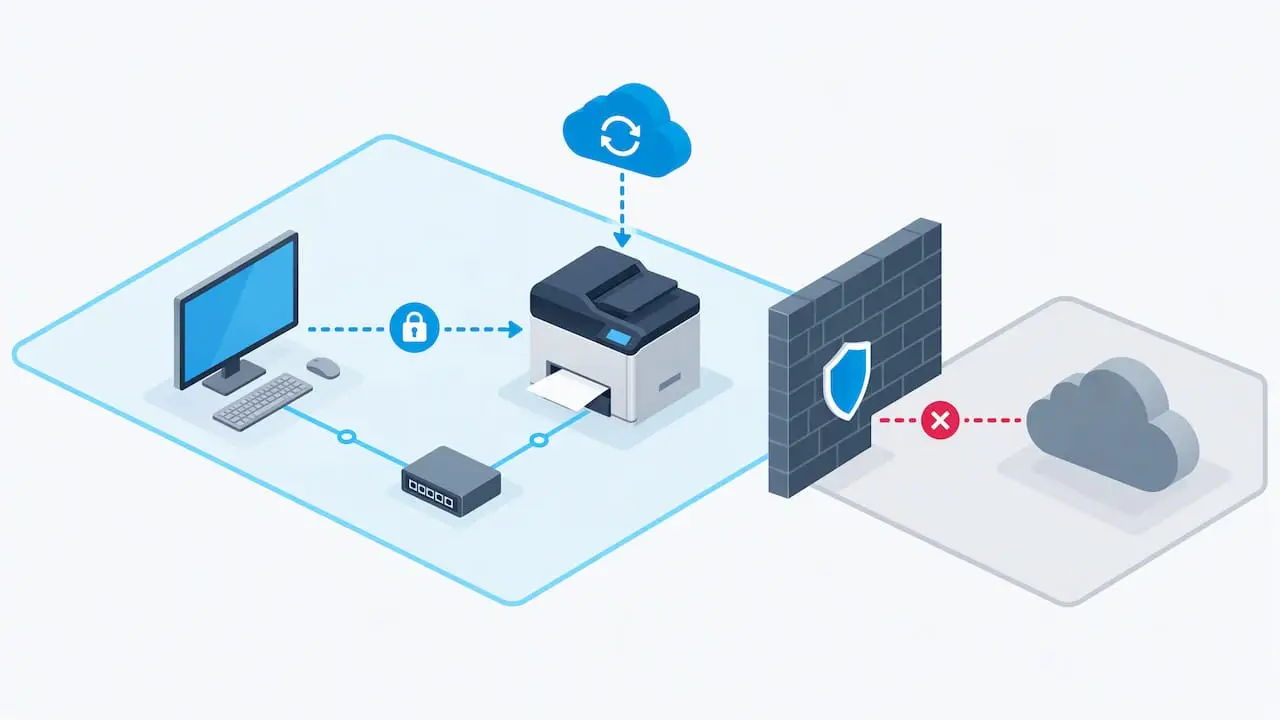
The practical consequence: when you are tempted to fix a connection problem by opening a port, disabling a firewall rule or putting the printer on a flat guest network to “make it work”, stop. Fix the underlying cause instead. If you want to harden the devices you already own, our 30/60/90 printer security hardening plan sets out a sensible order of work for IT managers.
Our perspective: printers are the most under-managed devices in the office
After thirty years supporting Irish organisations, we see the same pattern in almost every office. Servers are monitored, laptops are patched, and the printer in the corridor has not had a firmware update since the day it was installed. Its address is whatever the router handed out, its admin password is the factory default, and nobody owns it until it stops working.
That is why “printer not connecting” so often returns. The fault is rarely the printer. It is a device that was set up once and never managed: no fixed address, a driver that differs from PC to PC, a shared connection that depends on one person’s computer, and a Wi-Fi signal that was marginal from the beginning. Each time it breaks, someone resets it and it works until the next router restart.
Our advice is to treat printers like any other network endpoint. Give them reserved addresses. Standardise the driver and push it to every PC. Keep firmware current. Put them on the right network, and restrict what can reach them. Monitor them so that a printer going offline is noticed by your support provider before it is noticed by your finance team at month end. That is what proactive managed support does, and it is a cheaper way to run an office than repeated emergency call-outs.
Our view is also that you should not spend an hour of a senior person’s time on a fault that a technician could resolve in ten minutes with the right access. Use the checks in this article, and when they do not resolve it, hand it over with the notes you took.
— Carl
How we help when the fixes above are not enough
If you have worked through the checks and the printer still will not connect, or it keeps failing, we can take it from there. Our engineers support printers, photocopiers and multifunction devices as part of our wider printer, photocopier and MFC maintenance and repair service, covering both the machine and the network and PC settings around it.
For offices that want these problems prevented rather than repaired, our managed services bring printers, PCs, servers and the network under proactive monitoring, with Silver, Gold and Platinum support levels and onsite and remote help. You can see how the plans work on our managed support page, and we are happy to discuss what suits your business size. If you need a new device, we also supply HP desktops, laptops and related products, and install and configure them on your network.
A short checklist to keep by the printer
When the printer drops off, work through these in sequence and note the result of each. Does the printer’s panel show an error? Can a second device print? Does the configuration page show a valid IP address on the right network? Does that address match the one the PC is using? Can the PC ping it? Is the Print Spooler running, and is the queue empty? Is the driver the correct, current one for the model? Has anything changed on the router, Wi-Fi or cabling recently?
If you reach the end without a result, the information you have gathered is exactly what a support engineer will ask for. Having it ready usually halves the time to a fix.
FAQ
Why is my printer connected to Wi-Fi but still showing offline?
The printer may have received a new IP address, so the computer is sending jobs to the old one. It can also be that Windows has the “Use Printer Offline” option ticked, or that the Print Spooler has stopped. Print a network status page, compare the address with the printer port in Windows, and restart the spooler if they match.
Why can my printer not connect to Wi-Fi on the office network?
Check that the router broadcasts a 2.4 GHz network the printer can use, that the printer is within a reasonable distance of the router, and that it is not on a guest network requiring a web login. HP notes that printers often fail on such networks, and gives 8 metres as the recommended maximum distance for a stable connection.
What does “driver is unavailable” mean?
Windows has a printer set up but cannot find a working driver for it, often after an update, a failed install or a spooler fault. Restart the Print Spooler, remove the printer and its driver, restart the PC and add it again using the manufacturer’s current driver for your exact model.
Why can Windows not find my printer at all?
The PC and printer may be on different networks, the printer may have changed address, or discovery may be failing. Ping the printer, then add it manually by its IP address from the Printers and scanners settings. If the printer is shared from another computer, make sure that computer is switched on and awake.
When should I call IT support rather than keep trying?
Call when more than one person is affected, when the spooler keeps stopping, when the fault returns every few days, or when the fix would mean changing network or security settings you do not fully understand. Those cases are rarely a single printer problem and are quicker to resolve with access to the network.
Sources
- Troubleshoot a Wi-Fi connection to an HP printer, HP Support
- Fix print spooler service not running errors in Windows, Microsoft Support
- Fix print job stuck in queue errors in Windows, Microsoft Support
- Fix printer not found and printer not recognized errors in Windows, Microsoft Support
- Printing blank pages after a document, HP Support
- Cyber security in enterprise connected devices, GOV.UK
- Using peripherals securely, NCSC
- Open port 631: Internet Printing Protocol, UK Government Security