
Windows Autopilot provisions Windows devices by joining them to Microsoft Entra and automatically enrolling them in Intune, delivering a ready-to-use device at first sign-in, or a fully userless device when self-deploying mode is used. Getting there reliably means confirming licensing, registering hardware correctly, choosing the right deployment mode and configuring the Enrollment Status Page so failures surface early rather than at a user’s desk.
TL;DR:
- A purchased tenant license is not enough: assign an eligible license to the enrolling user, and confirm TPM 2.0 and supported UEFI firmware.
- Userless provisioning suits kiosks, shared devices, and signage, but zero touch requires Ethernet because wireless connections need manual network selection.
- Only OEM or Microsoft Cloud Solution Provider registration supports DFCI firmware management; manual CSV imports cannot enable it, regardless of tenant settings.
- Configure a custom ESP to show installation progress and collect logs; block device use for all required apps, or select only mandatory apps when speed matters.
- Automatic diagnostics retain logs for 28 days; check TPM attestation, ESP timeouts, and hybrid join mismatches first when provisioning stalls.
Table of Contents
- How the Autopilot process flows from unboxing to desktop
- What you need before you start: prerequisites and licensing
- Preparing and registering devices for Autopilot
- Choosing the right deployment mode for your devices
- Running the deployment: a step-by-step run-book
- Setting up the Enrollment Status Page correctly
- Diagnosing failures without guesswork
- Co-management and what to check after provisioning
- What years of Autopilot rollouts have taught us
- Let us run the deployment for you
- FAQ
- Sources
How the Autopilot process flows from unboxing to desktop
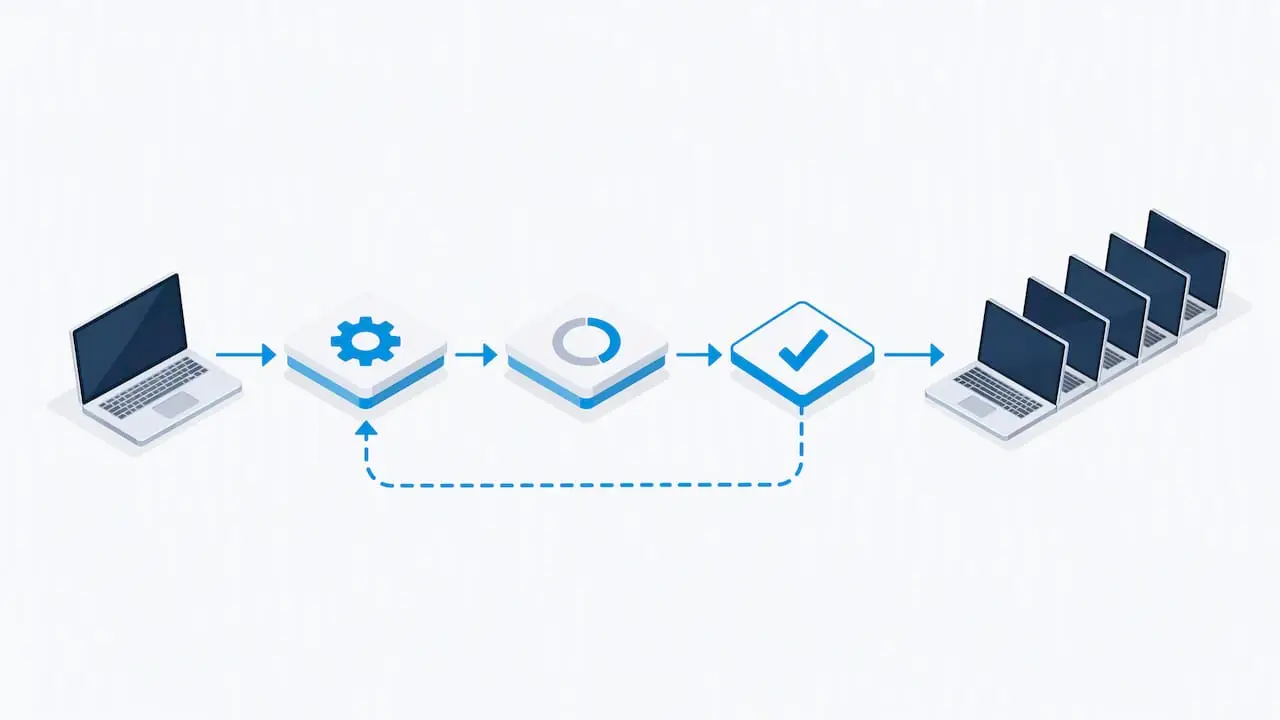
A device fresh from the box connects to a network during the Out of Box Experience and downloads its assigned Autopilot profile; wired Ethernet allows this to happen with no user interaction, while Wi-Fi requires at least a manual network selection before the profile can be retrieved. Once the profile lands, the device performs a Microsoft Entra join and triggers automatic MDM enrollment into Intune, exchanging the tokens and certificates needed for policy delivery. From there, the Enrollment Status Page takes over in two phases.
- Device ESP applies machine-level policies, certificates and required apps before any user signs in.
- User ESP (user-driven mode only) finishes user-targeted app and policy delivery after sign-in.
- Diagnostic and event data accumulate throughout, stored locally for later review or export.
Each of these stages has its own place to check progress or pull logs, which matters once something stalls.
What you need before you start: prerequisites and licensing
Most failed rollouts trace back to one of four gaps: a missing licence assignment, an unsupported device, a blocked network path, or firmware that cannot attest. Before registering a single device, confirm the fundamentals.
- Eligible licensing includes Microsoft 365 Business Premium, F1/F3, Academic A1/A3/A5, Enterprise E3/E5, EMS E3/E5, Intune for Education, or Entra ID P1/P2 paired with Intune.
- Licences must be actively assigned to the signing-in user, not merely purchased at tenant level, or enrollment will fail silently.
- Outbound access to Microsoft Entra, Intune and Windows Update endpoints must be open on the network the device first connects to.
- Devices need TPM 2.0 and supported UEFI firmware; Windows 11 and DFCI-eligible hardware carry additional OEM attestation requirements.
One in four Autopilot support cases traces back to a licence that exists in the tenant but was never assigned to the enrolling user, according to Microsoft’s own requirements documentation, which makes licence assignment the first thing worth checking before any device troubleshooting begins.
Preparing and registering devices for Autopilot
Devices only appear as deployable once their hardware hash is captured and registered against the tenant. The method you choose affects what the device can do later.
- Harvest the hardware hash using
Get-WindowsAutopilotInfo.ps1, run locally or during OOBE with Shift+F10; incomplete OEM data or a missing serial number is the most common collection failure. - Register through an OEM or Microsoft Cloud Solution Provider for attested registration, which is the only path that supports DFCI firmware management later on.
- Import manually via CSV when OEM registration is not available, accepting that DFCI will not be an option for those devices.
- Organise devices into dynamic groups by model, purchase order or business unit so profiles and ESP settings target the right machines automatically.
- Delete or unblock the existing Intune device record before redeploying reused hardware, since a stale record causes silent provisioning failures.
Our team handles hardware registration as part of most installation and configuration projects, largely because the OEM-versus-manual decision has long-term consequences that are easy to miss at the procurement stage.
Choosing the right deployment mode for your devices
Autopilot offers three distinct provisioning paths, and picking the wrong one tends to surface as a support ticket weeks later rather than an immediate error.
- User-driven mode suits individually assigned laptops and desktops: the end user signs in, user ESP runs, and user-targeted apps and policies apply.
- Self-deploying mode is built for kiosks, shared devices and digital signage; it is userless from start to finish, performs Entra join and enrollment automatically, and reaches true zero-touch only over Ethernet, since Wi-Fi needs a manual network choice.
- Pre-provisioning (technician flow) lets a technician complete the device-targeted portion of ESP in a staging location, handing the end user a device that only needs the user ESP phase, though mixing line-of-business and Win32 app installs across both phases can extend the handover window.
As a rule of thumb, choose user-driven for named-user machines, self-deploying for anything without a dedicated user, and pre-provisioning when devices ship to remote sites and you want the unboxing experience to be as short as possible.
Running the deployment: a step-by-step run-book
With prerequisites and mode decided, the actual rollout follows a consistent sequence in Entra and Intune.
- Confirm licence assignment, enable automatic MDM enrollment in Entra, and verify Entra join settings match your chosen mode.
- Create a dynamic device group, then build an Autopilot deployment profile and assign it to that group.
- Assign the required apps, configuration profiles and compliance policies to the same group so device ESP has something to enforce.
- Create and assign a custom ESP, confirming it targets the correct group and mode.
- Register the device hardware hash and confirm it appears in the Autopilot devices list in Intune before shipping or handing it out.
- Start OOBE on the device and watch the Enrollment Status Page progress through its phases, then confirm completion in Intune’s enrollment and deployment reports.
This mirrors the six-step workflow Microsoft documents for self-deploying scenarios: enrollment setup, device registration, group creation, ESP configuration, profile assignment, then deployment.
Pro Tip: Run one test device through the full profile and ESP combination before registering a bulk batch; it catches group-targeting and app-assignment mistakes before they multiply across dozens of machines.
Setting up the Enrollment Status Page correctly
The default ESP hides progress from the end user, which makes failures look like a frozen screen rather than a specific, diagnosable error. Microsoft recommends a custom ESP with the following enabled.
- Show app and profile configuration progress, so users and support staff see what is installing and when.
- Turn on log collection and diagnostics page for end users, so a failure produces a CAB file without a support call back to IT.
- Block device use until all apps and profiles are installed for compliance-sensitive builds, or Selected for a smaller mandatory subset when speed matters more.
- Timeout values set generously for app-heavy builds, paired with a custom error message that tells the user what to do next rather than a generic failure screen.
Diagnosing failures without guesswork
When provisioning stalls, Intune’s automatic diagnostic capture is the first place to look. Logs are retained for 28 days when automatic capture is enabled, which it is by default on most tenants.
- Trigger manual collection during OOBE with Shift+F10, then run
%windir%system32mdmdiagnosticstool.exe -area Autopilot;DeviceEnrollment -cab %temp%autopilot-logs.cab. - Inspect Event Viewer under ModernDeployment-Diagnostics-Provider → Autopilot for detailed step-by-step provisioning events.
- Check the registry under
HKLMSOFTWAREMicrosoftProvisioningDiagnosticsAutopilot, where profile data is stored locally on the device. - Match error codes against known patterns: TPM attestation failures, ESP timeouts, hybrid join domain mismatches and conflicts from mixing LOB and Win32 app installs in the same phase.
TPM attestation errors, ESP timeouts and hybrid join mismatches account for the large majority of Autopilot support escalations, per Microsoft’s troubleshooting FAQ, and each has a distinct fix: reseat or update TPM firmware, extend ESP timeout values, or reconcile the on-premises and cloud join state before retrying.
Co-management and what to check after provisioning
Organisations running Configuration Manager alongside Intune need the CCM client installed during device ESP, which adds time to the phase and should be reflected in your timeout settings rather than treated as a stall. DFCI firmware management remains available only to devices registered through an OEM or Microsoft CSP; manually imported devices cannot be enrolled in DFCI regardless of tenant configuration.
- Confirm policy and app assignment status in Intune within the first hour after enrollment, since some settings lag behind the ESP completion screen.
- Check the device’s assigned update ring and compliance status, which can take longer to report than app installation.
- Verify conditional access policies apply correctly to the newly joined device before treating the rollout as finished.
Encryption and compliance settings applied at this stage are worth reviewing against our endpoint encryption guidance to confirm nothing was left on a default configuration.
What years of Autopilot rollouts have taught us
The received wisdom treats Autopilot as a one-time setup task, something you configure once and forget. In practice, the profiles, groups and ESP settings that worked for last year’s laptop model often need revisiting when a new OEM batch arrives with different firmware behaviour or when a Windows 11 feature update changes how the device ESP phase reports progress. Teams that treat Autopilot configuration as a living document, reviewed each time hardware or licensing changes, avoid the slow drift into mismatched group assignments that causes the most confusing failures. The technical documentation covers the mechanics well; what it cannot tell you is that the biggest risk to a smooth rollout is rarely the technology itself, but an assumption left unchecked since the pilot batch.
— Carl
Let us run the deployment for you
Planning Autopilot across a growing device estate takes time most IT teams do not have spare, particularly when OEM registration, group targeting and ESP tuning all need to align before the first shipment goes out. We configure Autopilot deployments as part of our managed services, handling licence assignment, hardware registration and ESP configuration so your devices arrive ready rather than requiring a desk visit.

Get in touch through our contact page to scope a deployment project, whether that is a handful of replacement laptops or a full fleet refresh.
FAQ
What are the known issues with Windows Autopilot?
The most frequently reported issues are TPM attestation errors, ESP timeouts on app-heavy builds and hybrid join domain mismatches, each documented in Microsoft’s troubleshooting FAQ. Legacy Group Policy settings left over from on-premises management also commonly conflict with Autopilot enrollment and are worth checking first.
Is Windows Autopilot the same as Intune?
No, Autopilot and Intune are separate but closely linked services. Autopilot handles the initial Entra join and provisioning experience, while Intune is the mobile device management platform that enforces the policies, apps and compliance rules Autopilot enrols the device into.
What is Windows Autopilot self-deploying mode and how does it work?
Self-deploying mode provisions a device without any user interaction, which suits kiosks, shared devices and digital signage. As Microsoft describes it, the device performs Entra join, Intune enrollment, app installation and policy application automatically, reaching true zero-touch only over a wired Ethernet connection.
Can Windows Autopilot be used without Intune?
Autopilot requires an MDM service to complete enrollment, and Intune is the service Microsoft documents and supports for this workflow. Licensing combinations that enable Autopilot, such as Entra ID P1/P2 paired with Intune, assume Intune as the enrollment endpoint.