

Back up Active Directory and confirm a healthy replication state with dcdiag and repadmin before you delete or disable a single object. Most cleanup disasters trace back to one cause: an admin ran bulk changes while replication errors were already present, then watched the damage propagate across every domain controller. Once dcdiag and repadmin come back clean, and a restorable system state backup exists, you have a genuine green light to proceed. A managed services partner can run this validation for you if the environment has drifted too far to be trusted internally.
TL;DR:
- Active Directory environment health must be verified with
dcdiagandrepadminbefore any cleanup or object deletion, ensuring replication and DNS are error-free.- Restoration tests for backups are essential, and cleanup should only proceed after confirming that system state backups are restorable and environment health is good.
- Inactive user and computer accounts should be identified using specific time-based filters, disabled first, monitored for weeks, and only deleted once confirmed unused.
- Metadata cleanup for orphaned domain controllers involves precise use of Active Directory tools, either GUI or command-line, performed during a scheduled change window.
- DNS scavenging must be carefully staged, with zones disabled initially, monitored through specific event IDs, and enabled gradually over several weeks to avoid deleting active records.
Table of Contents
- What should you check before starting Active Directory cleanup?
- How do you validate Active Directory health before cleanup?
- How do you find and safely remove inactive user accounts?
- How do you clean up server metadata after removing a domain controller?
- How does DNS aging and scavenging actually work?
- How do you find and remove lingering or abandoned objects?
- How can PowerShell automate Active Directory cleanup safely?
- What backup and rollback plan do you need before cleanup?
- How do you clean up unused security groups and distribution lists?
- What should you do with stale computer accounts?
- How do you clean up Service Principal Names safely?
- LANCAST perspective: in-house versus managed execution
- Get a managed Active Directory health check from Lancast
- Sources
- FAQ
What should you check before starting Active Directory cleanup?
Active Directory cleanup goes wrong most often not because someone deletes the wrong object, but because nobody checked whether the environment could survive a mistake. Run through this before you touch anything:
- Confirm backups are restorable. An AD-aware system state backup or full domain controller image is worthless if nobody has tested a restore. Verify one exists and that it actually mounts.
- Run
dcdiagandrepadmin. Every domain controller should report clean replication with no DNS errors. If it doesn’t, fix that first. - Check the DNS event log for scavenging activity, specifically Event ID 2501 (scavenging started) and 2502 (scavenging completed), so you know whether automated deletion is already running unsupervised.
- Inventory stale accounts and flag exceptions. Service accounts, break glass admin accounts, and anything under legal retention need to be excluded before you generate a deletion list.
- Set a change window, tell the team, and turn on monitoring. Cleanup work should never happen silently.
Pro Tip: Keep a single shared spreadsheet or ticket listing every account, group, and DC you’ve flagged for removal, with a status column. It sounds basic, but it is the single most effective defence against someone re-deleting an object mid-review because two admins were working from memory instead of a record.
How do you validate Active Directory health before cleanup?
Health checks exist to answer one question: will this environment tolerate deletions without silently corrupting itself? Running dcdiag on every domain controller is the starting point, and Microsoft’s own AD health check guidance is explicit that cleaning up an already unhealthy directory risks object corruption rather than resolving it.
Pay particular attention to these dcdiag test areas:
- DNS tests — confirm each DC can resolve and register correctly; failures here often precede replication problems, not the other way round.
- Replication tests — a failing DC here means objects may exist in inconsistent states across your forest.
- Service Principal Name (SPN) checks — misregistered SPNs frequently surface here before they cause authentication failures elsewhere.
Follow that with repadmin /showrepl to see replication status per partner, and repadmin /replsummary for a forest-wide summary that flags DCs falling behind. Both commands take seconds to run and tell you immediately whether your topology is trustworthy.
Verify SRV records exist for each DC and that dynamic DNS updates are actually succeeding, not just configured. Microsoft’s DNS diagnostic tooling will flag zones where updates are silently failing, which is a common precursor to lingering object problems later.
If any of this comes back red, stop. Resolve replication and DNS issues before you move to inactive account cleanup, metadata removal, or scavenging. Cleanup layered on top of an already broken directory tends to compound the damage rather than fix anything.
How do you find and safely remove inactive user accounts?
Stale accounts accumulate quietly. Someone leaves, IT disables the laptop but not the account, and eighteen months later nobody remembers whether jsmith is safe to remove. A staged process protects you from the two failure modes: deleting something still in use, and letting genuinely dead accounts sit as an attack surface indefinitely.
- Report first. Use
Search-ADAccount -AccountInactive -TimeSpan 90.00:00:00or filterGet-ADUseronLastLogonTimestampandPasswordLastSetagainst a threshold you define, typically 90 to 180 days depending on your organisation’s leave and contractor patterns. - Build an allowlist. Service accounts, scheduled task accounts, and privileged accounts often show stale logon timestamps by design. Exclude them explicitly rather than trusting the filter alone.
- Disable, don’t delete, first. Move flagged accounts to a dedicated OU and disable them.
- Run a scream test. Wait two to four weeks and monitor for help desk tickets or application failures tied to the disabled accounts.
- Delete only after the monitoring window closes clean, and log every action with timestamps and the operator’s name for audit purposes.
Pro Tip: Export your “about to disable” list to CSV before you touch anything. If a scream test does surface a dependency, you need the exact prior state to re-enable the right account fast, not a vague memory of what you changed.
How do you clean up server metadata after removing a domain controller?
Metadata cleanup becomes necessary when a domain controller is demoted improperly, decommissioned without running dcpromo/Remove-ADDSDomainController correctly, or lost entirely to hardware failure. Left alone, the forest keeps referencing a DC that no longer exists, which causes replication warnings and can block FSMO role transfers.
Microsoft’s own server metadata cleanup guidance walks through both a GUI and a command-line path, and it’s worth knowing both because the GUI path fails in specific, recognisable ways.
Using the GUI:
- Open Active Directory Sites and Services, locate the dead server object under its site, and delete the NTDS Settings object beneath it. This is what actually triggers metadata cleanup in modern versions of Windows Server.
- In Active Directory Users and Computers, enable Advanced Features from the View menu so you can see the computer object under Domain Controllers, then remove it.
- Check whether the object has “Protect object from accidental deletion” enabled. If it does, you’ll need to clear that flag first or the deletion will silently fail.
Using the command line:
ntdsutilremains the tool for manual metadata cleanup on older or more stubborn environments, letting you connect to a surviving DC and explicitly remove server metadata for the dead one.- Cross-check with
repadmin /showreplafterwards to confirm no remaining DC still lists the removed server as a replication partner.
Common errors and fixes:
- Access denied almost always means you’re not running as a Domain Admin or Enterprise Admin, or you’re targeting the wrong DC for the connection.
- Replication inconsistencies post-cleanup usually resolve within one replication cycle, but if they persist beyond that, re-run
repadmin /replsummaryand investigate the specific partner still complaining.
Do this work during a change window, and confirm FSMO role holders are correctly assigned before and after, since metadata cleanup can occasionally surface a role that was silently orphaned along with the dead DC.
How does DNS aging and scavenging actually work?
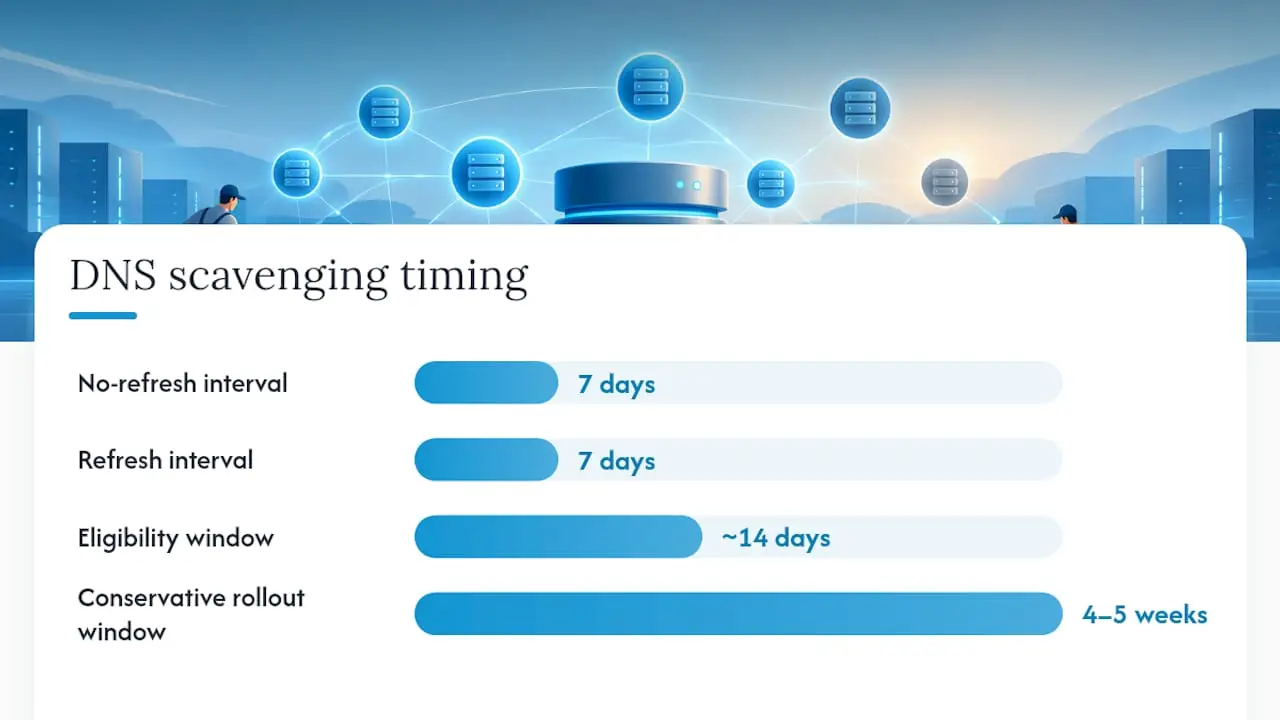
DNS scavenging deletes stale records automatically, and if you enable it carelessly, it deletes records that are still in active use. Understanding the timing mechanics is the difference between a clean, predictable cleanup and an outage caused by a vanished SRV record.
A DNS record becomes eligible for scavenging when its timestamp, plus the no-refresh interval, plus the refresh interval, is less than the current server time, according to Microsoft’s DNS aging and scavenging documentation. With Microsoft’s default settings of seven days for each interval, a genuinely stale record typically becomes eligible for removal after around 14 days, though the actual deletion depends on when the scavenging cycle next runs.
Scavenging isn’t instant, and it isn’t linear. A Microsoft archived engineering post notes that the server-level scavenging interval resets entirely if the DNS service restarts, which means a record you expected to disappear on schedule can sit untouched for another full cycle. Patience, and correct configuration, matter more than urgency here.
Roll it out in stages rather than flipping it on everywhere:
- Turn off scavenging on all DNS servers first, then enable aging on the zones you intend to clean.
- Wait through a full refresh/no-refresh cycle as a sanity check before scavenging deletes anything, following the phased approach Microsoft’s own DNS scavenging setup guidance recommends.
- Enable scavenging on one server per zone, not every DNS server simultaneously, so you retain a single point of control and audit trail.
- Watch Event IDs 2501 and 2502 in the DNS server log, which mark the start and completion of each scavenging pass.
A conservative rollout, covering setup, the sanity-check window, and staged enablement, typically spans four to five weeks according to Microsoft’s own troubleshooting guidance. Create a disposable test record beforehand and track exactly when it disappears; that gives you a real, observed timeline for your environment rather than a theoretical one.
How do you find and remove lingering or abandoned objects?
Lingering objects and abandoned objects sound like the same problem. They aren’t, and using the wrong removal method on the wrong type will either fail outright or leave inconsistent state behind.
Lingering objects are objects that were deleted on one domain controller but never received the deletion because that DC was offline or disconnected beyond the tombstone lifetime. They typically surface as replication errors referencing objects that shouldn’t exist, or as “phantom” entries that reappear after you thought you’d removed them.
Abandoned objects are a variant Microsoft distinguishes specifically: objects not present on any writable DC’s up-to-dateness vector, which means the usual comparison-based removal tools can’t see them to act on them.
For lingering objects, two paths work well:
repadmin /removelingeringobjects, run against the DC holding the stale copy, referencing a known-good source DC.- The Lingering Object Liquidator, a Microsoft-provided tool that automates detection and removal across multiple DCs at once, which is faster when the problem spans more than one or two servers, per Microsoft’s Lingering Object Liquidator documentation.
For abandoned objects, you’re generally into manual territory:
Ldp.exe, connecting to rootDSE and invokingremoveLingeringObjectdirectly against the object’s distinguishedName and objectGUID, following the process Microsoft documents for manually removing lingering objects.- Scripted LDIFDE imports, useful when you’re clearing several objects with a known pattern rather than one-off manual removal.
Run repadmin in advisory mode first, exporting the findings to a file, rather than jumping straight to removal. That gives you a reviewable list before anything irreversible happens.
After removal, verify with repadmin /showobjmeta against the affected object, and re-run a full replication sanity check across the forest to confirm no partner DC still references the removed data.
How can PowerShell automate Active Directory cleanup safely?
Manual, one-off deletions don’t scale past a handful of accounts, and they leave no audit trail worth trusting six months later. Scripted cleanup fixes both problems, provided you build it around a report first, act later discipline rather than destructive one-liners.
- Detect and report. Use
Search-ADAccount -AccountInactiveandGet-ADUserwith filters onLastLogonTimestamp, piping results toExport-Csvbefore any action runs. - Review the export. A human should read the list before stage three happens, particularly checking it against your service account allowlist.
- Disable, don’t delete, in the first pass. Scripts should default to
Disable-ADAccount, neverRemove-ADObject, on the first execution. - Monitor for a defined window, then run a second, separate script pass for actual removal, only against accounts still on the disabled list.
- Log every action to a file or SIEM with timestamp, operator, and target object, so any change is traceable after the fact.
Pro Tip: Keep every cleanup script in source control, even a simple private Git repository, and require a second admin’s review before a destructive script runs against production. It costs five minutes and catches the filter typo that would otherwise disable half your service accounts at 2am.
Never run a bulk deletion command directly against a live OU without a preceding -WhatIf pass or an exported report to compare against. The -WhatIf flag on most destructive AD cmdlets exists specifically so you can see the blast radius before committing to it.
What backup and rollback plan do you need before cleanup?
Every cleanup step above assumes you can recover if something goes wrong, and that assumption is only as good as your last tested backup. An AD-aware system state backup, taken from at least one DC per domain, is the minimum baseline; authoritative restore procedures depend on having one that’s genuinely current and genuinely restorable, not just scheduled.
- Test the restore path in an isolated lab before you need it in production. A backup nobody has restored is a hope, not a plan.
- Validate scripts in the same lab against a representative copy of your directory before running them against live objects.
- Define rollback triggers in advance: replication that stops advancing, a sudden spike in authentication errors, or help desk tickets clustering around a specific OU should all mean stop and restore, not push through.
- Document the runbook, including who to escalate to and their contact details, before the change window opens, not during it.
A managed backup and recovery service, such as Lancast’s data recovery and backup offering, removes the guesswork around whether your restore chain actually works when it matters.
How do you clean up unused security groups and distribution lists?
Security groups and distribution lists rot faster than user accounts because nobody owns them the way they own a person’s identity. A group created for a project that ended two years ago often still grants access nobody remembers approving.
Start by identifying groups with zero members, or membership that hasn’t changed in over a year, using Get-ADGroup combined with Get-ADGroupMember scripted across your OU structure. Cross-reference against Group Policy Object links too: a security group used purely for GPO filtering won’t show application access risk the way a resource group does, but it still needs the same scrutiny.
The scream test applies here as directly as it does to accounts. Rather than deleting a suspect group outright, strip its permissions or rename it with a “PENDING DELETION” prefix and monitor for access complaints over two to four weeks. Microsoft’s own guidance on group cleanup treats this staged disablement as a genuine safeguard, not a formality, particularly in environments where dependency documentation is thin or nonexistent.
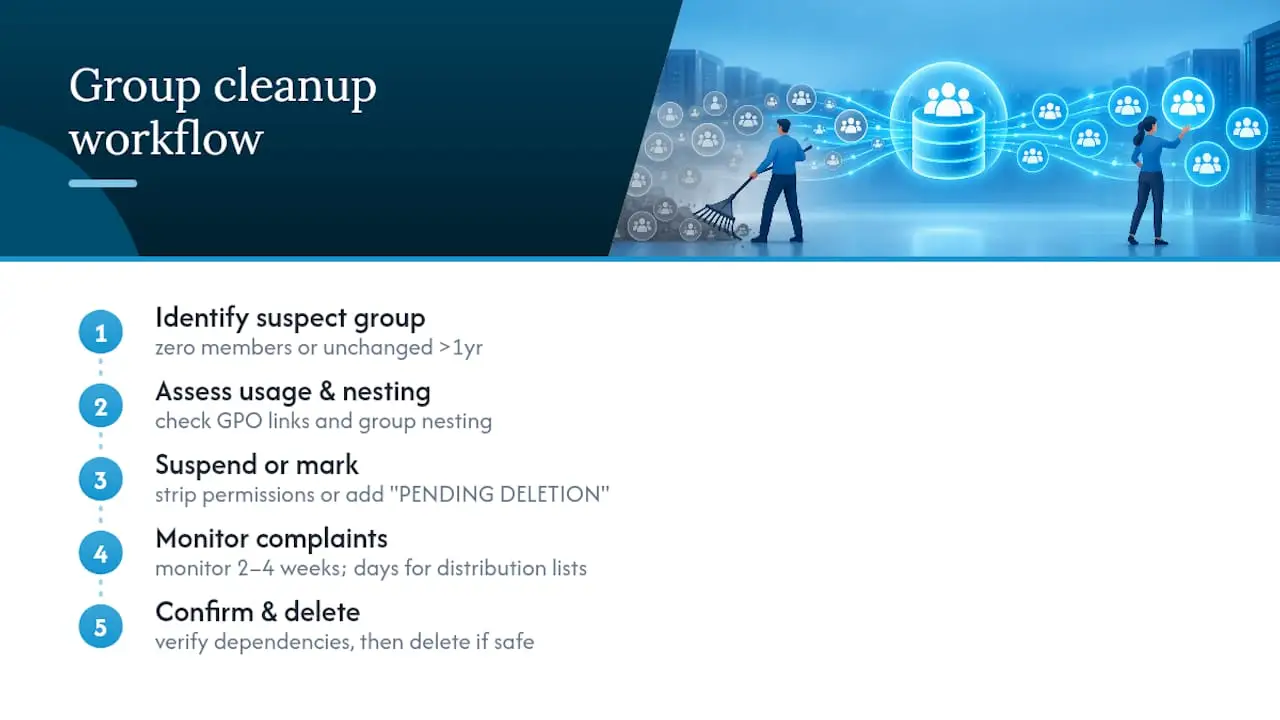
Distribution lists carry a slightly different risk profile: deleting one that’s referenced in a mail flow rule or a shared calendar invite tends to surface complaints faster than a security group would, often within days rather than weeks. That’s useful, since it shortens your effective monitoring window for mail-related objects specifically.
Nesting complicates all of this. Before removing any group, check whether it’s nested inside another group, since removing a parent can silently strip access from members who never appeared in the group you were reviewing directly.
What should you do with stale computer accounts?
Computer accounts left behind by decommissioned machines are one of the quietest risks in Active Directory, because a stale computer account with a valid Kerberos ticket can still authenticate against domain resources long after the physical machine is gone or wiped.
Identify them with Get-ADComputer filtered on LastLogonTimestamp and PasswordLastSet, since computer account passwords rotate automatically every 30 days by default; an account that hasn’t rotated its password in 90 days or more is almost certainly no longer an active domain member. Cross-reference the list against your asset management or endpoint management platform if you have one, since that gives you independent confirmation a machine is genuinely retired rather than just quiet.
Apply the same staged approach used for user accounts: disable first, move to a dedicated “pending removal” OU, monitor, then delete. The monitoring window matters slightly less here than with user accounts, since a legitimately decommissioned machine won’t generate help desk complaints, but it still protects against accidentally disabling a rarely used but still-active server or kiosk device.
Pay particular attention to computer accounts tied to service accounts running under a machine identity, and to any device still holding delegation rights or SPNs, since removing the computer object without checking those first can break authentication for a service that appears, on the surface, unrelated to that machine.
Document removed computer accounts with their original hostname and last known IP, since DNS and DHCP records sometimes lag behind the AD object deletion by a scavenging cycle or more.
How do you clean up Service Principal Names safely?
Service Principal Names (SPNs) tie a service instance to an account for Kerberos authentication, and duplicate or orphaned SPNs are a disproportionately common cause of authentication failures that look, on the surface, like unrelated application bugs.
Before removing any SPN, run an impact analysis: use setspn -L against the account in question to see every SPN currently registered, and setspn -X across the domain to check for duplicates, since a duplicate SPN registered on two different accounts will cause Kerberos authentication to fail intermittently and unpredictably for whichever account loses the race.
Orphaned SPNs, ones registered against an account or computer object that no longer exists or is being decommissioned, should be removed as part of that object’s cleanup process rather than left behind. setspn -D removes a specific SPN from an account; confirm which application or service actually depends on it before running that command, since the application team is rarely the same team running the cleanup.
Test SPN changes in a lab or against a non-production service account first where at all possible. Kerberos authentication failures caused by SPN misconfiguration tend to be intermittent rather than immediate, which makes them harder to diagnose after the fact than a straightforward account deletion.
Keep a running inventory of SPNs tied to service accounts specifically, since these are the objects most likely to be excluded from your broader inactive account cleanup, and the ones most likely to cause a production outage if someone cleans them up without checking dependencies first.
LANCAST perspective: in-house versus managed execution
Most in-house teams can handle inactive account cleanup and basic health checks without help. What tends to tip a job toward managed services is scale across multiple domains, documentation so thin nobody can confirm what a legacy group actually protects, or a DC decommission that’s already gone wrong. An experienced provider’s approach leans on continuous monitoring, staged execution with a genuine rollback point, and a tested backup before anything irreversible happens.
— Carl
Get a managed Active Directory health check from Lancast
Expert providers with decades of infrastructure experience and recognized industry partnerships perform the health checks, backups, and staged execution described throughout this guide as part of their routine services.

If your directory has drifted into the kind of state where nobody’s fully sure which groups, accounts, or domain controllers are safe to touch, that’s exactly the gap our managed services team closes. We handle the dcdiag and repadmin validation, the backup verification, and the staged scream test process, then hand back a directory that’s genuinely clean rather than one where the risky objects have just been hidden a bit deeper. Get in touch to request an Active Directory health check and scope out a cleanup plan before your next audit or migration forces the issue.
Sources
FAQ
Does Windows 11 have a built-in Active Directory cleanup tool?
No. Windows includes a Storage Sense and Disk Cleanup utility for local disk space, but neither touches Active Directory objects, accounts, or DNS records. AD cleanup requires dedicated tools like dcdiag, repadmin, PowerShell’s Get-ADUser/Search-ADAccount cmdlets, or Microsoft’s Lingering Object Liquidator.
Is Disk Cleanup safe to use on a domain controller?
Windows Disk Cleanup is generally safe on a domain controller since it targets temporary files and system caches, not the AD database or SYSVOL contents directly. It has no bearing on directory service health, so running it won’t help or harm your Active Directory cleanup effort either way.
How do I perform a DNS cleanup in Active Directory?
Enable aging on your DNS zones first, then follow a staged rollout: disable scavenging everywhere, wait through a full refresh/no-refresh cycle as a sanity check, then enable scavenging on a single DNS server per zone. Monitor Event IDs 2501 and 2502 to confirm scavenging is running as expected before trusting it fully.
How do I clear the Active Directory cache?
There is no single “AD cache” to clear; the term usually refers to clearing the DNS client resolver cache with ipconfig /flushdns, or forcing Kerberos ticket renewal with klist purge. Neither action deletes AD objects, so it has no place in an object cleanup workflow, only in troubleshooting stale resolution or authentication issues.
How often should Active Directory cleanup happen?
Most environments benefit from a quarterly review of stale accounts and groups, paired with an annual deeper pass covering metadata, SPNs, and DNS scavenging configuration. Organisations without a dedicated identity team often let this slip, which is where a managed health check from Lancast fits, catching drift before it becomes a security or audit problem.