

Microsoft 365 Backup is a sound primary recovery tool for most organisations, thanks to fast, in-boundary restores that get mailboxes and sites back online quickly. It is not a complete answer on its own: the one-year retention ceiling and lack of an off-boundary immutable copy mean regulated or larger organisations still need a hybrid approach. The right decision depends on your retention obligations and how much you trust a single-vendor recovery boundary.
TL;DR:
- Microsoft 365 Backup provides fast, boundary-protected restores for Exchange, SharePoint, and OneDrive, but it only retains data for one year within the tenant boundary.
- Recovery speed varies from under 20 minutes for small site restores to 1-3 terabytes per hour in bulk, with restore points as frequent as every 10 minutes.
- Costs depend on data size, including active, deleted within retention, and archived content, and are billed per gigabyte rather than per user.
- Native backup lacks coverage for Teams chat messages, off-boundary immutable copies, and long-term retention, often requiring third-party solutions for full compliance.
- Effective backup management involves precise policy configuration, regular testing, and may benefit from third-party or managed services for complex environments.
Table of Contents
- What does Microsoft 365 backup actually cover?
- Which features actually determine how well you can recover?
- How fast can you actually restore data?
- How much does Microsoft 365 backup cost?
- How do you set up and manage backup policies?
- Where does native backup fall short, and when do you need more?
- What is the practical rollout checklist?
- What role does a managed partner play in getting this right?
- Get your Microsoft 365 backup strategy properly assessed
- Where to check the details yourself
- Sources
- FAQ
- The gap between “backed up” and “recoverable”
What does Microsoft 365 backup actually cover?
Microsoft 365 Backup protects three core workloads: Exchange Online mailboxes, SharePoint Online sites, and OneDrive for Business accounts. It was built for the scenarios IT teams face most often, not for edge cases.
It suits three situations particularly well:
- Fast recovery after ransomware or accidental mass deletion, where minutes matter more than months of history.
- Day-to-day operational restores, such as recovering a deleted SharePoint library or a mailbox a departing employee wiped on the way out.
- General business continuity planning, where the goal is getting core productivity data back online quickly rather than archiving it indefinitely.
The architecture is the reason it performs so well at that job. Because backups stay inside the Microsoft boundary rather than travelling to external storage, restores avoid the network transfer time that slows down traditional backup tools. That is a deliberate trade-off, and one worth understanding before you rely on it exclusively.
Which features actually determine how well you can recover?
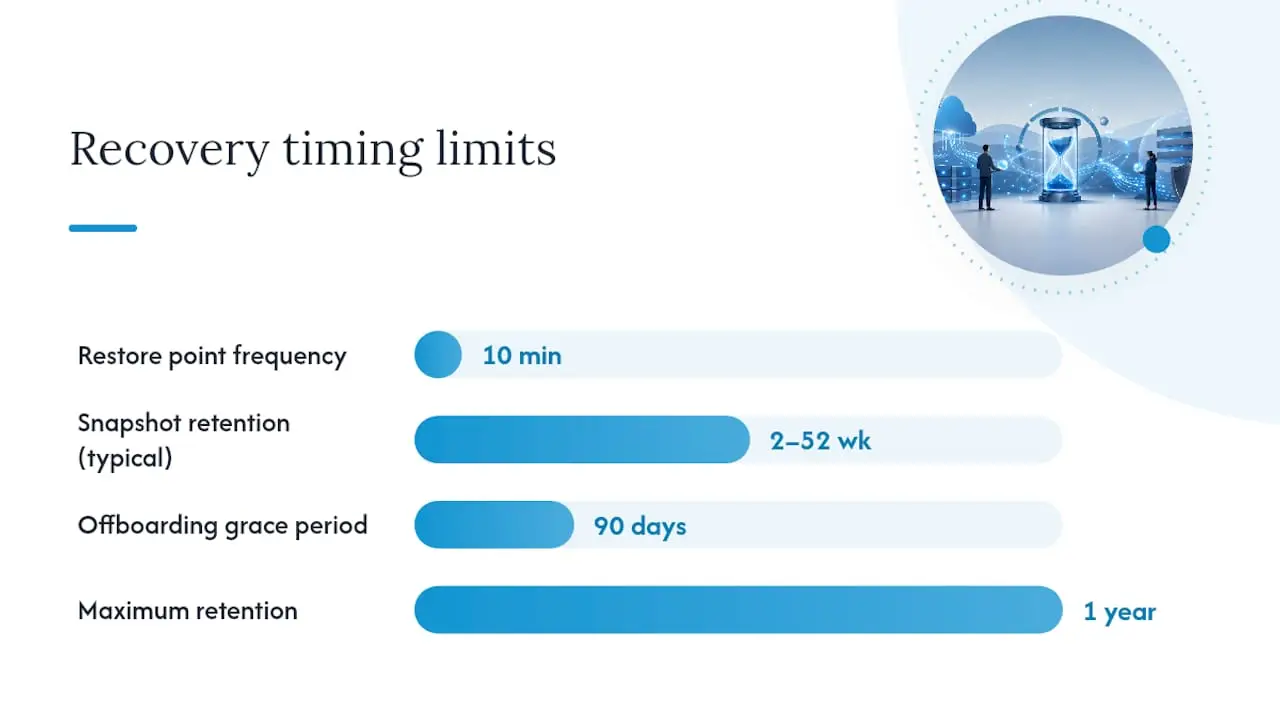
Three features decide how usable a backup is in a real incident: restore granularity, retention length, and how the storage layer resists tampering.
Restore options range from full-site recovery down to individual item and file-version restores, so you are not forced to roll back an entire SharePoint site to recover one document. Express restore points offer near-continuous protection, while weekly snapshots give a broader recovery window for slower-moving data.
| Feature | Detail |
|---|---|
| Restore point frequency | As often as every 10 minutes |
| Snapshot cadence | Weekly, retained from 2 to 52 weeks |
| Maximum retention | 1 year (varies slightly by workload) |
| Storage model | Append-only, resistant to in-place tampering |
| Offboarding grace period | 90 days before backup data is purged |
The 10-minute restore point cadence and 1-year retention ceiling apply across workloads, though the exact behaviour differs slightly between Exchange, SharePoint, and OneDrive. A few operational details matter beyond the headline numbers:
- Append-only storage means a compromised admin account cannot silently overwrite existing backup data.
- Multi-admin approval alerts flag unusual policy changes before they take effect.
- The 90-day post-offboarding grace period gives you a window to recover data even after a licence is removed.
How fast can you actually restore data?
Restore speed depends heavily on scale, and Microsoft publishes concrete benchmarks worth building into your incident response runbook rather than guessing at.
For small, targeted recoveries, express restores on sites under 1TB typically complete in under 20 minutes. That is fast enough to resolve a single deleted-file panic before it becomes a helpdesk escalation. Bulk restores scale differently:
- Large-scale recoveries can reach 1 to 3 terabytes per hour, or roughly 250 protection units per hour, when many sites need restoring simultaneously.
- Mailbox restores typically run at 200 to 500 items per minute, depending on item size and mailbox structure.
- Restore point type matters: an express restore point recovers faster than reconstructing from an older weekly snapshot.
Pro Tip: Run a test restore quarterly on a representative mailbox and site, then log the actual time taken. Documented, measured RTOs in your runbook are worth far more during a real incident than vendor benchmarks, because your data distribution is never quite the same as Microsoft’s test environment.
How much does Microsoft 365 backup cost?
Microsoft 365 Backup runs on a pay-as-you-go consumption model billed per gigabyte per month, tied to an Azure subscription rather than a flat per-user licence.
The billed figure is not just your live data. It includes:
- Current live content across protected mailboxes, sites, and OneDrive accounts.
- Deleted items still sitting in recycle bins within the retention window.
- Online archive mailboxes, where enabled.
Because older versions and deleted items count toward the total, trimming live data does not immediately shrink your bill. It only drops once the older retained versions expire naturally. Microsoft’s pricing calculator and native PowerShell usage reports both help estimate spend before you commit a policy to production, and departmental billing lets larger organisations attribute cost by business unit rather than absorbing it centrally.
How do you set up and manage backup policies?
Getting policy configuration right up front avoids two common problems: over-protecting content you do not need and under-protecting content you do.
- Choose your recovery window per policy. Longer windows mean higher storage cost but more forgiving recovery options.
- Decide between Full Workload Backup, which protects an entire tenant workload automatically, and targeted policies scoped to specific sites or mailboxes via exclusions.
- For large environments, use CSV bulk upload to assign policies across many sites at once rather than configuring them individually, noting the platform’s upload limits.
- Understand policy precedence, since overlapping policies on the same content need a clear priority to avoid ambiguous behaviour.
- Set role-based access control so only approved administrators can create, edit, or shrink recovery windows.
Pro Tip: Reducing a recovery window is a destructive change and only takes effect after a 30-day grace period. Treat any reduction like a change request, not a quick settings tweak, because it is not instantly reversible.
Departmental billing and RBAC controls also matter for governance, particularly where multiple teams share one Azure subscription and need clear cost attribution.
Where does native backup fall short, and when do you need more?
Native Microsoft 365 Backup has real gaps, and knowing them precisely is what separates a defensible backup strategy from a false sense of security.
The main limitations are:
- No coverage for Teams chat messages, only files shared through Teams that live in SharePoint or OneDrive.
- A hard one-year ceiling on restorable retention, regardless of what your industry or insurer requires.
- Backups stay inside the Microsoft tenant boundary, so there is no independent, off-boundary immutable copy if the tenant itself is compromised.
- No native cross-tenant restore path, which matters during mergers, acquisitions, or tenant-to-tenant migrations.
These gaps translate into specific decision triggers. If your insurer or auditor requires an off-boundary immutable copy as a condition of cover, native backup alone will not satisfy that requirement. If your regulatory obligations demand retention beyond 365 days, whether for financial records or sector-specific compliance, you need a supplementary archive. If Teams chat history is business-critical evidence, a third-party tool is the only route to recovering it.
None of this means abandoning the native tool. Independent analysis generally recommends a layered pattern: let Microsoft 365 Backup handle fast, everyday restores, and scope a third-party or managed service narrowly to the workloads and retention periods it cannot reach. That keeps licensing cost proportionate to the actual gap rather than duplicating coverage you already have.
What is the practical rollout checklist?
A structured rollout avoids the two most common mistakes: under-sizing the budget and skipping test restores until an actual emergency forces the issue.
- Inventory your environment. Pull live data sizes and recycle bin volumes for Exchange, SharePoint, and OneDrive using PowerShell or admin reports.
- Decide your architecture. Native-only suits smaller IT teams without complex compliance demands; native plus third-party suits organisations with Teams, cross-tenant, or long-retention needs; a managed service suits teams without spare capacity to run this in-house.
- Build a simple cost model using the pricing calculator, factoring in growth over 12 months, not just current usage.
- Pilot the configuration on a representative mailbox and site, and record actual restore times against your target RTO and RPO.
- Set consumption budgets, alerting, and a documented runbook before rolling the policy out tenant-wide.
What role does a managed partner play in getting this right?
As a Microsoft Cloud Service Provider, we work with organisations to turn Microsoft 365 Backup’s native capabilities into a properly governed recovery strategy, not just a switched-on setting.
A typical engagement starts with discovery: sizing your environment, mapping which workloads genuinely need extended retention, and identifying where a hybrid approach closes a real gap rather than an imagined one. From there, we design policies, run pilot restores to validate actual recovery times, and hand over a documented runbook your team can operate day to day. Ongoing support covers monitoring, incident response, and adjusting policies as your data grows. If you would like a second opinion on your current backup posture, our data recovery and backup team is a natural place to start.
Get your Microsoft 365 backup strategy properly assessed
A managed service provider can give you a genuine alternative to guessing at your backup coverage. Instead of piecing together native settings and hoping they match your compliance obligations, you get expert guidance on where Microsoft 365 Backup is strong and exactly where it needs support.
With extensive experience in IT infrastructure, we handle the parts that trip up internal teams: sizing your true storage footprint, configuring policies with the correct recovery windows, and scoping any third-party addition to only the gaps that genuinely matter for your industry. That keeps costs proportionate instead of layering on coverage you do not need. For organisations running a wider Microsoft 365 rollout, our migration and transformation team can fold backup planning into the same project. If identity and app management is also on your radar, MyBizApps offers centralised administration that pairs well with a consolidated Microsoft 365 environment.
If you want a straight answer on where your organisation currently stands, book a discovery assessment through our managed services team and we will map your gaps before you commit budget to a fix.
Where to check the details yourself
For the authoritative technical specifics, start with Microsoft’s own backup overview and policy configuration guide. For independent decision frameworks weighing native versus third-party coverage, the Microsoft 365 Backup decision framework is a useful practitioner reference.
Sources
- Overview of Microsoft 365 Backup
- Microsoft 365 Backup decision framework (Tiago S. Carvalho)
- The top backup and recovery solutions for Microsoft Office 365 (Expert Insights)
FAQ
Does Microsoft 365 have built-in backup?
Yes. Microsoft 365 Backup is a native, first-party service covering Exchange, SharePoint, and OneDrive, with restore points as frequent as every 10 minutes. It is separate from the short-term retention built into standard Microsoft 365 licensing, which is not designed as a full backup solution.
How do I backup Microsoft 365?
You enable Microsoft 365 Backup through the admin centre, tied to an Azure subscription, and then create a policy defining your recovery window and which workloads to protect. Larger environments can use CSV bulk upload to apply policies across many sites at once, following the policy configuration process Microsoft documents.
Is Microsoft 365 backup free?
No, it runs on a pay-as-you-go model billed per gigabyte per month based on protected content size, not a flat add-on to your existing licence. Lancast’s current pricing for managed backup configuration and support is available directly through our managed services page.
What is the best backup for Microsoft 365?
There is no single best answer. It depends on your organisation’s size and compliance needs: smaller teams often do well with native Microsoft 365 Backup alone, while larger or regulated organisations typically need a third-party or managed layer for Teams coverage and longer retention. Lancast helps assess which pattern fits your specific retention and compliance obligations.
The gap between “backed up” and “recoverable”
Most organisations treat backup as a checkbox: either you have it enabled or you do not. That framing misses the actual question worth asking, which is whether your backup meets the retention period a regulator, insurer, or client contract actually demands.

Microsoft 365 Backup is genuinely impressive engineering. In-boundary restores at the speed Microsoft documents would have been unimaginable from a native tool five years ago. But speed and completeness are different problems, and I think too many IT teams conflate them. A backup that restores an entire SharePoint site in twenty minutes is not automatically a backup that satisfies a seven-year financial retention requirement, and it is not a backup that survives a fully compromised tenant, because the copy lives inside the same boundary as the thing that got compromised.
The organisations getting this right are not the ones buying the most expensive third-party suite on principle. They are the ones who have actually read their own compliance obligations, matched them against the one-year retention ceiling and in-tenant storage model, and then made a deliberate, narrow decision about where a supplementary layer earns its cost. That is a more disciplined exercise than most vendors want you to believe it needs to be, and it is exactly where a managed partner tends to add more value than another software licence.
— Carl