

Setting up Microsoft Intune means five things in order: confirming your licences, preparing your Microsoft Entra ID and Intune environment, choosing how devices will enrol, applying a sensible baseline of security policies, and then deploying your apps. None of these steps is difficult on its own. The trouble usually comes from doing them in the wrong order, or from switching on every policy on day one. This guide walks through the sequence as we would approach it for an Irish small or medium business, and explains where an outside partner genuinely saves time.
TL;DR
- Check your licensing first: Intune is usually bundled inside Microsoft 365 plans, so you may already own it.
- For new Windows devices, Windows Autopilot with Microsoft Entra join is the cleanest route to enrolment.
- Start with a baseline of encryption, screen locks and updates, then add policies gradually.
- Apps must support silent installation to deploy through Intune, so test your line-of-business software early.
- Legacy on-premises Active Directory adds a connector and network complexity that a cloud-only setup avoids.
Table of Contents
- What Intune does for a business your size
- Step 1: Check your licensing before you do anything else
- Step 2: Prepare your tenant and your identities
- Step 3: Choose how devices will enrol
- Step 4: Build a baseline, not a fortress
- Step 5: Deploy your applications
- Step 6: Pilot, then roll out in waves
- Our perspective: treat Intune as a service, not a project
- When it makes sense to bring in help
- Frequently asked questions
- Sources
What Intune does for a business your size
Intune is Microsoft’s cloud service for managing devices and the apps on them. It lets you enrol laptops and desktops, push settings, deploy software, check that each device meets your security standards and wipe a device that has been lost. It also feeds device health into your sign-in decisions, which is where it becomes more than a remote control.
The UK’s National Cyber Security Centre makes this point in its mobile device management guidance: an MDM service should give every device a unique identity and work with your identity platform so that device health can be evaluated before access to sensitive services is granted. In a Microsoft environment, that identity platform is Microsoft Entra ID. If you want the wider picture, our zero trust guide for Irish businesses explains how device management fits into it.
For a firm of 10 to 200 people, the practical benefits are simple. New starters get a working laptop without anyone in IT handling it first. Every machine is encrypted and patched to the same standard. When someone leaves, you remove company data without chasing a device across the country.
Step 1: Check your licensing before you do anything else
Microsoft’s Intune licensing documentation states that a licence is required for every user or device that benefits directly or indirectly from the service. In practice, Intune is rarely bought on its own. It is typically included in broader Microsoft 365 bundles such as E3 and E5, which also carry the Entra ID features you need. Dedicated device licences exist for shared-use cases such as kiosks.
Two practical points follow from this. First, audit what you already have. Many businesses are paying for Intune through their Microsoft 365 plan without ever having switched it on. Second, make sure the licences are assigned to the right people. A user without a licence will not enrol cleanly, and the error messages rarely say why. Our article on Windows Autopilot deployment and unassigned licences covers this trap in more detail.
One small relief: according to the same Microsoft page, tenants created after July 2021 allow administrators to manage the environment without needing their own Intune licence. That does not remove the need to licence the people whose devices you manage.
As a Microsoft Cloud Service Provider, we can review your current subscriptions and advise on the plan that fits your headcount, rather than leaving you to decode the bundles yourself. If you are still choosing a productivity platform, our comparison of Microsoft 365 versus Google Workspace sets out the trade-offs.

Step 2: Prepare your tenant and your identities
Microsoft describes the first step of deployment in its guide to setting up Intune. It covers the environment itself: confirming your tenant, checking that your domain and users are in order, and setting up the admin access you will use. Before anyone enrols a device, we recommend settling the following.
Decide where identity lives. If you are cloud-only, users sign in with Entra ID and devices are Entra joined. If you still run on-premises Active Directory, you may need hybrid join, which we cover below.
Secure the sign-in first. Devices that are well managed but accessed with a password alone are still exposed. If you have not yet moved everyone to multi-factor authentication, do that before or alongside Intune. Our six-step MFA migration checklist for Microsoft 365 is written for exactly this.
Create groups that reflect how you work. Separate groups for staff laptops, shared desktops and any pilot users make later policy assignment far simpler. A pilot group of three or four people, including one who is not technical, will teach you more than any amount of reading.
If you are also moving mail and files into Microsoft 365 at the same time, it helps to sequence the two projects. We set out how in our guide to Microsoft 365 migration for growing businesses.
Step 3: Choose how devices will enrol
Enrolment is the point at which a device is registered in Entra ID, enrolled in Intune and checked for compliance. Microsoft’s page on enrolling devices in Intune describes the available methods, and the choice matters more than most people expect.
| Method | Best for | What to know |
|---|---|---|
| Windows Autopilot with Entra join | New company-owned Windows devices | Zero-touch: the user signs in with work credentials during first-run setup and the device configures itself |
| Manual enrolment through Company Portal | Existing devices, small pilots | Quick to start, but relies on the user following the steps |
| Group Policy triggered enrolment | Devices already joined to on-premises Active Directory | Needs hybrid join and the supporting infrastructure |
For modern Windows devices, Microsoft’s guidance points to Autopilot as the recommended route. The device is registered, the user signs in at the first-run experience, and enrolment and configuration follow automatically. The Windows Autopilot requirements page confirms that once the user authenticates, Entra ID triggers enrolment into Intune. Practically, that means a laptop can be delivered from the supplier straight to a new employee’s home, and they are working on a managed, compliant machine within the hour.
If you buy your hardware through us, we can register devices for Autopilot before delivery. We supply HP desktops and laptops as an HP Amplify Partner, so purchase and configuration can sit in one conversation. See our range of HP desktops and laptops.
Cloud-only or hybrid?
For organisations moving away from on-premises Active Directory, Entra join with automatic enrolment gives the best user experience. The hybrid scenario is where practitioners most often struggle. According to Microsoft’s enrolment guidance, keeping on-premises Active Directory means installing and maintaining the Intune Connector for Active Directory, with the connectivity needs that come with it.
Our advice is plain: if you have a small on-premises directory that exists mainly out of habit, ask whether retiring it is easier than maintaining a hybrid arrangement. If you have older servers and applications that genuinely depend on it, hybrid is a perfectly valid answer, but plan for the extra moving parts.
Step 4: Build a baseline, not a fortress
This is where we see the most avoidable trouble. Intune can enforce a very large number of settings, and the temptation is to enforce them all.
The NCSC’s Windows platform guidance recommends choosing devices that support modern Windows security features and building from there. The NCSC case study of the Judicial Appointments Commission is a useful real-world example: devices were configured and managed as far as possible through Intune, and the most challenging aspect was securing them without deploying too much local policy.
We suggest a baseline along these lines for your first release.
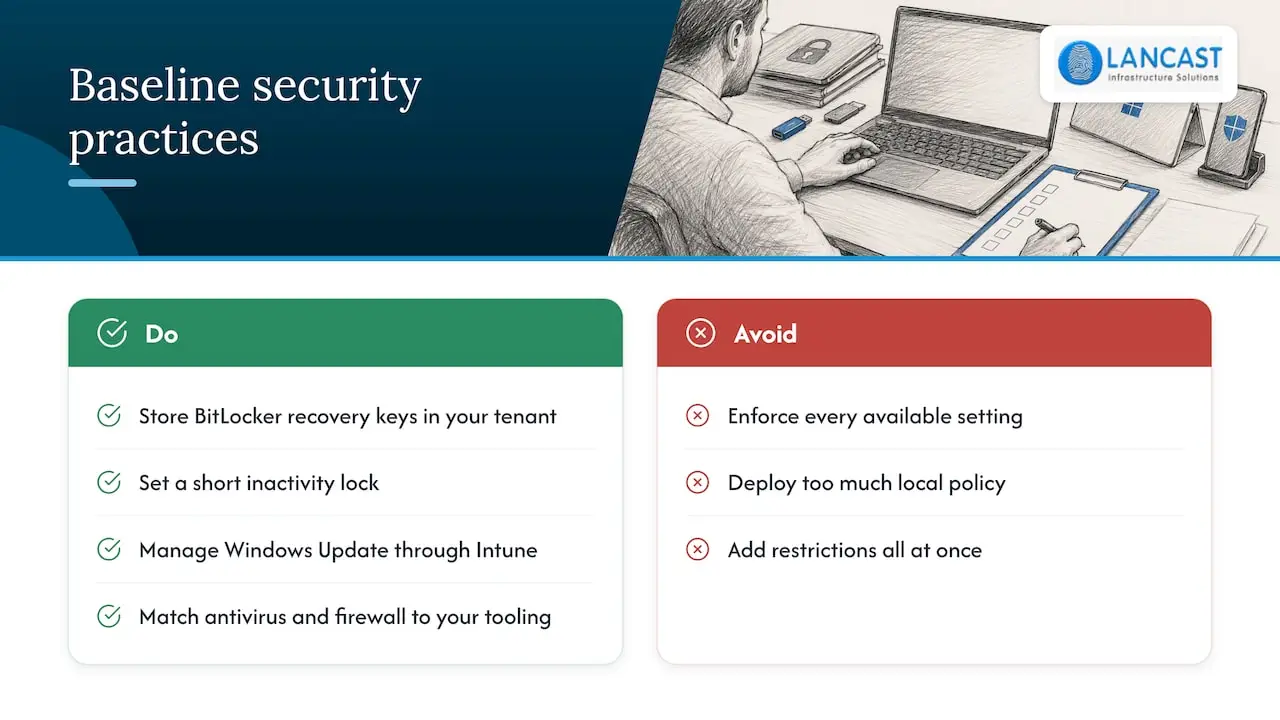
Disk encryption with BitLocker on every laptop, with recovery keys stored in your tenant. Our guide on deploying endpoint encryption safely covers the sequencing that avoids locked-out users.
A screen lock after a short period of inactivity, and a sign-in requirement that matches your MFA rollout.
Windows Update managed through Intune, using the update features built into Windows rather than a separate third-party agent. Keeping to built-in platform features, as the NCSC platform guidance encourages, means fewer agents to patch and an environment that is easier to run over the long term.
Antivirus and firewall settings that match your chosen security tooling.
Then stop, assign to your pilot group, and watch. Add further restrictions one at a time. Over-policing leads to configuration drift and application incompatibilities, and the cost is paid in helpdesk calls and frustrated staff. If a specific policy proves too restrictive for a team, the device should still meet the baseline while you adjust. For a broader view of how to protect PCs without slowing people down, read how to secure business PCs without slowing work.
Step 5: Deploy your applications
Microsoft 365 apps and Store apps are straightforward. Your line-of-business software is not, and it deserves the most testing time.
For classic Windows desktop applications, Intune uses the Win32 app model. Microsoft’s documentation on preparing a Win32 app for upload explains that the app must first be packaged with the Microsoft Win32 Content Prep Tool, which produces an .intunewin file. The same page notes that the app must support silent or unattended installation, and that each application is limited to 30 GB. Once packaged, you add and assign the app in the admin centre, setting the install command, the detection rule that tells Intune the app is present, and the groups that receive it.
The packaging itself is quick. The real effort lies in finding, or working out, the right silent install switches for older or proprietary software. An installer that insists on a user clicking through prompts will fail in an automated deployment. Ask your software vendors for their unattended install instructions before you begin, not after a rollout stalls. Where a vendor cannot supply them, allow time for testing, or consider whether the application is due for replacement.
Step 6: Pilot, then roll out in waves
Once your baseline and apps are in place, test the whole journey as a new employee would experience it. Unbox a device, sign in, and see what arrives. Note how long it takes, what the user is asked to do and what they see if something fails.
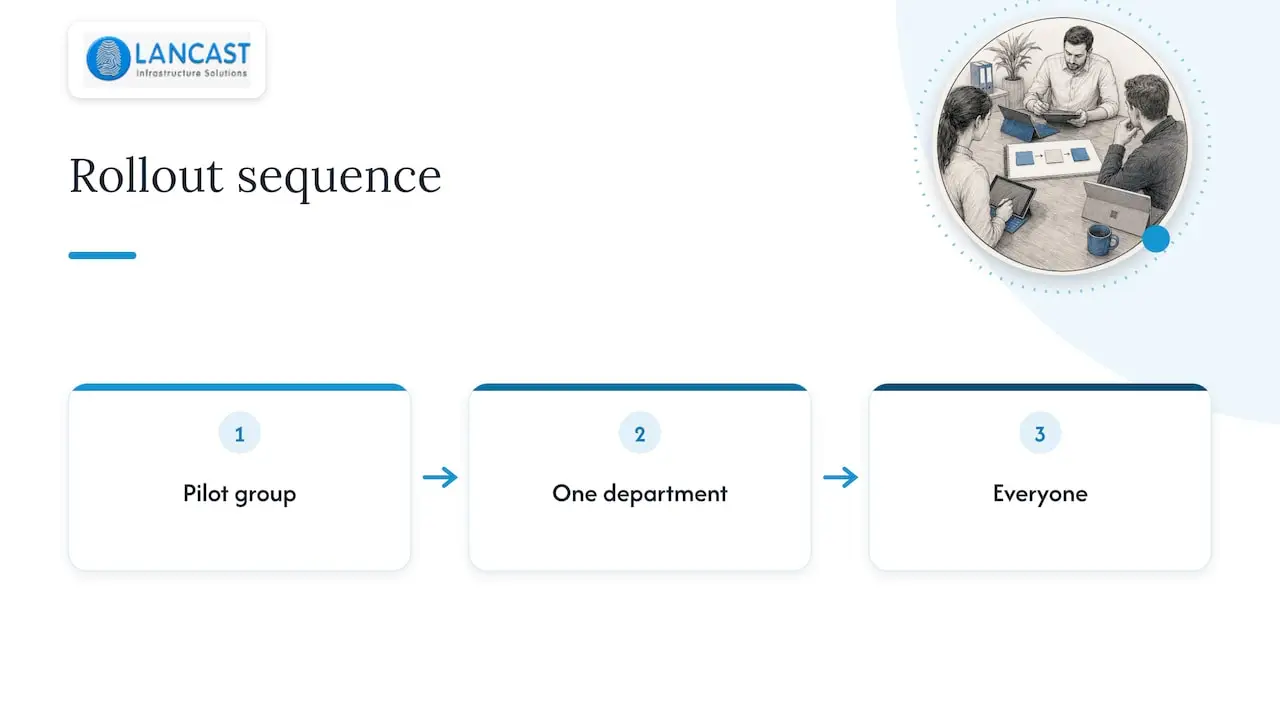
Then widen the rollout in stages: the pilot group first, then one department, then everyone. Keep a short record of each policy, who it applies to and why you set it. Six months on, nobody remembers the reasoning, and this record is what stops policies piling up unexamined.
If you are refreshing your fleet at the same time, our article on Windows 11 deployment explains how to measure what you have before automating the change.
Our perspective: treat Intune as a service, not a project
We have supported Irish organisations with their IT for 30 years, and the pattern with Intune is consistent. The businesses that get lasting value from it are not those that configured the most settings. They are the ones that treated device management as an ongoing service, with someone responsible for reviewing compliance reports, retiring old policies, testing new Windows releases and onboarding new devices consistently.
That is why we favour a proactive approach. Setting up Intune well takes a few days of focused work. Keeping it well takes a little attention every week: checking which devices have fallen out of compliance, making sure licences follow starters and leavers, and confirming that updates are landing. A small business rarely has a person whose job that is, and it should not need one. This is the kind of work our managed services are built around, so that we act as an extension of your own team.
Our other firm view is on scope. Do not try to solve every device problem in the first release. Get devices enrolled, encrypted, patched and carrying the right apps. Everything else can follow once people trust the process.
— Carl
When it makes sense to bring in help
You can set up Intune yourself, and Microsoft’s documentation is thorough. Outside help earns its place in a few situations: you have an on-premises directory to untangle, you have older applications that resist silent installation, you want devices shipped pre-registered, or nobody in the business has the hours to run it afterwards.
We provide Intune and Microsoft 365 setup alongside IT consultancy and Microsoft 365 and cloud services, and we can continue with day-to-day support under our Silver, Gold and Platinum managed support plans, either remote or onsite. If you are a smaller firm wondering what is realistic, our page on managed IT services for small businesses explains how we work.
Frequently asked questions
Is Intune part of Microsoft 365?
Intune is included in some Microsoft 365 plans, notably bundles such as E3 and E5, and can also be licensed separately. Check the Microsoft licensing page against your current subscription before buying anything. We can confirm what you hold and what you are missing.
How do I add a PC to Intune?
For a new device, the simplest route is Windows Autopilot: the user signs in with their work account during first-run setup and enrolment follows. For an existing device, a user can enrol through the Company Portal app or the work account settings. Either way, the user needs an assigned licence.
What are the requirements for Intune?
You need a Microsoft Entra ID tenant, licences for the users or devices, and devices running a supported operating system. For Autopilot, the devices must also meet the Autopilot requirements and be able to reach the required network endpoints.
Why did my app fail to install through Intune?
The most common cause is an installer that needs user input. Win32 apps must support silent or unattended installation, as Microsoft’s packaging guide states. Check the install command, the silent switches and the detection rule first.
Is Intune worth it for a small business?
If your staff use laptops outside the office, or you hold customer data, central control of encryption, updates and access is worth having. Because Intune is often already bundled with your Microsoft 365 licensing, the cost is often more about setup time than subscription fees.
Sources
- Microsoft Intune licensing plans and options
- Set up Intune
- Enrol devices in Microsoft Intune
- Windows Autopilot requirements
- Prepare a Win32 app to be uploaded to Intune
- Add and assign Win32 apps to Intune
- NCSC: mobile device management guidance
- NCSC: Windows platform guide
- NCSC case study: Judicial Appointments Commission