

Treat printers as network endpoints and apply defence-in-depth: inventory every device, remove default credentials, apply firmware updates or isolate unsupported models, and segment printers away from core networks. These four actions close the gaps attackers exploit most often. The rest of this guide explains how to configure each control, in what order, and how to build the oversight that keeps them working.
TL;DR:
- Inventory printers across every VLAN using scans, DHCP logs, print queues, and device management tools; record firmware, location, owner, network, and risk.
- Change default administrator passwords immediately, block exposed web, SNMP, and Telnet ports, then isolate unsupported models or schedule their replacement.
- Use dedicated printer networks with firewall rules limited to necessary services, and enable secure release for confidential jobs on managed multifunction devices.
- Encrypt print traffic with TLS and stored jobs with disk encryption where supported; before disposal, erase data and retain destruction documentation.
- Review printer logs for failed logins, configuration changes, firmware updates, and unusual print or scan activity, and reassess firewall exceptions quarterly.
Table of Contents
- At-a-glance checklist of essential controls
- Inventory, asset management and visibility
- Network segmentation and access control for printers
- Device configuration, admin accounts and firmware management
- Secure printing workflows and user authentication
- Protecting print data: encryption, storage and secure erase
- Physical security and secure disposal
- Monitoring, logging and managed response
- Implementation checklist: a 30/60/90 day plan
- Author perspective: common mistakes and quick wins
- LANCAST offering: managed services for printer security
- FAQ
At-a-glance checklist of essential controls
Before diving into configuration detail, we recommend working through this sequence with your service desk or printer vendor. It separates urgent actions from those you can schedule over the following weeks.
- Same day: Change default admin passwords, disable unused remote management protocols, and list every networked printer you can find.
- Same day: Block exposed management ports (web admin, SNMP, Telnet) at the firewall until you confirm who needs them.
- This week: Identify end-of-support (EoS) devices and decide whether to isolate or replace them.
- This month: Build the full inventory and configuration detail covered later in this guide, then move to segmentation and secure-release printing.
Inventory, asset management and visibility
You cannot secure what you cannot see, and printers are frequently missing from asset registers that focus on laptops and servers. Discovery should combine several methods: network scans across all VLANs, DHCP lease logs, print server queues, and any integration available through your MDM or PSA platform.
Once discovered, each device record should capture:
- Model, serial number and current firmware version.
- Management IP address and the VLAN or subnet it sits on.
- Physical location and the business owner or department responsible.
- A risk rating based on data sensitivity, exposure and support status.
This record becomes the backbone of patching schedules, replacement planning and incident triage. When a printer behaves unexpectedly, the inventory tells you immediately what firmware it runs, who owns it and what it has access to, cutting investigation time significantly.
Network segmentation and access control for printers
Printers should sit on their own VLAN or subnet, separated from the networks carrying financial systems, directories and file servers. Firewall rules should then restrict traffic to only the protocols a printer genuinely needs, typically printing (IPP, LPD), administration from a defined management range, and nothing else.
- Place all printers and MFDs on a dedicated VLAN with firewall rules limiting inbound and outbound traffic.
- Permit only required ports and protocols; disable legacy services such as Telnet, FTP and unauthenticated SNMP.
- Apply 802.1X or port-based network access control where the switching infrastructure supports it.
- Document any exception, including why it exists and who approved it, so it gets reviewed rather than forgotten.
Security architecture practitioners consistently recommend this kind of layered control, combining segmentation, least privilege, encryption and monitoring, as the standard approach for embedded network devices like printers.
Pro Tip: Review firewall exceptions for printers every quarter; a rule added for a one-off vendor visit is the one most likely to still be open a year later.
Device configuration, admin accounts and firmware management
Factory defaults are the single most exploited weakness on networked printers. Every device ships with a known admin password and, often, every remote management protocol switched on. Hardening starts by changing or removing those defaults and restricting the admin interface to your management VLAN rather than the general network.
- Change or remove default administrator credentials on every device during onboarding, not after an incident.
- Restrict web admin, SNMP and any configuration interface to a defined management subnet.
- Enable Secure Boot, TPM and signed firmware where the hardware supports it rather than assuming it is active by default.
- Maintain a firmware update schedule, test updates in a small group before wider rollout, and flag devices nearing end of support for replacement.
Procurement guidance from Ulster University Digital Services notes that security features like Secure Boot and signed firmware are frequently present on modern devices but not enabled out of the box, and that remote management protocols need to be locked down rather than left open. Devices that no longer receive firmware updates should be treated as a genuine liability and scheduled for replacement rather than kept running indefinitely on legacy configurations.
Secure printing workflows and user authentication
Sensitive documents left sitting on an output tray are one of the most common, and most preventable, sources of data leakage in an office. Pull printing, where a job only releases once the user authenticates at the device with a card, PIN or single sign-on, removes that risk almost entirely.
- Deploy pull printing or secure-release workflows for any print queue handling confidential material.
- Centralise printing on managed multifunction devices rather than relying on desktop printers for sensitive output.
- Integrate release authentication with Active Directory, Azure AD or SAML so that every print job is attributable to a named user.
Guidance from Ulster University states plainly that desktop printers are not supported for confidential printing and recommends centralising to managed MFDs with secure-release controls instead, a position echoed in the university’s own getting-started IT guidance for staff moving away from distributed desktop devices.
Protecting print data: encryption, storage and secure erase
Print jobs travel across the network and often sit on a printer’s internal storage before release, which means both transit and storage need protection. Enabling TLS for print traffic and activating disk encryption, where the device supports it, closes two separate points of exposure.
- Encrypt print traffic in transit using TLS rather than relying on unencrypted raw printing ports.
- Enable disk encryption on devices that cache or spool jobs internally.
- Use secure-erase or cryptographic erase to clear stored jobs and configuration data before any device leaves your estate.
- Obtain a certificate of destruction from any third party involved in disposing of or recycling devices.
These steps map directly to data protection expectations: the Information Commissioner’s Office expects organisations to use secure deletion methods and to keep evidence of proper disposal, a point worth building into procurement and decommissioning policy rather than treating as an afterthought at end of life.
Physical security and secure disposal
Physical access to a printer can bypass every network control you have put in place, so location matters as much as configuration. Devices handling sensitive output belong in controlled areas, with badge access or locks where the risk warrants it, not in open corridors.
- Site printers handling confidential material in access-controlled rooms rather than open-plan areas.
- Use locked collection trays or shredding services for sensitive printouts awaiting collection.
- Store decommissioned devices securely until they are wiped or destroyed, never in an unlocked storeroom.
- Keep a documented chain of custody and destruction certificate for every disposed device, in line with ICO expectations on secure disposal.
Monitoring, logging and managed response
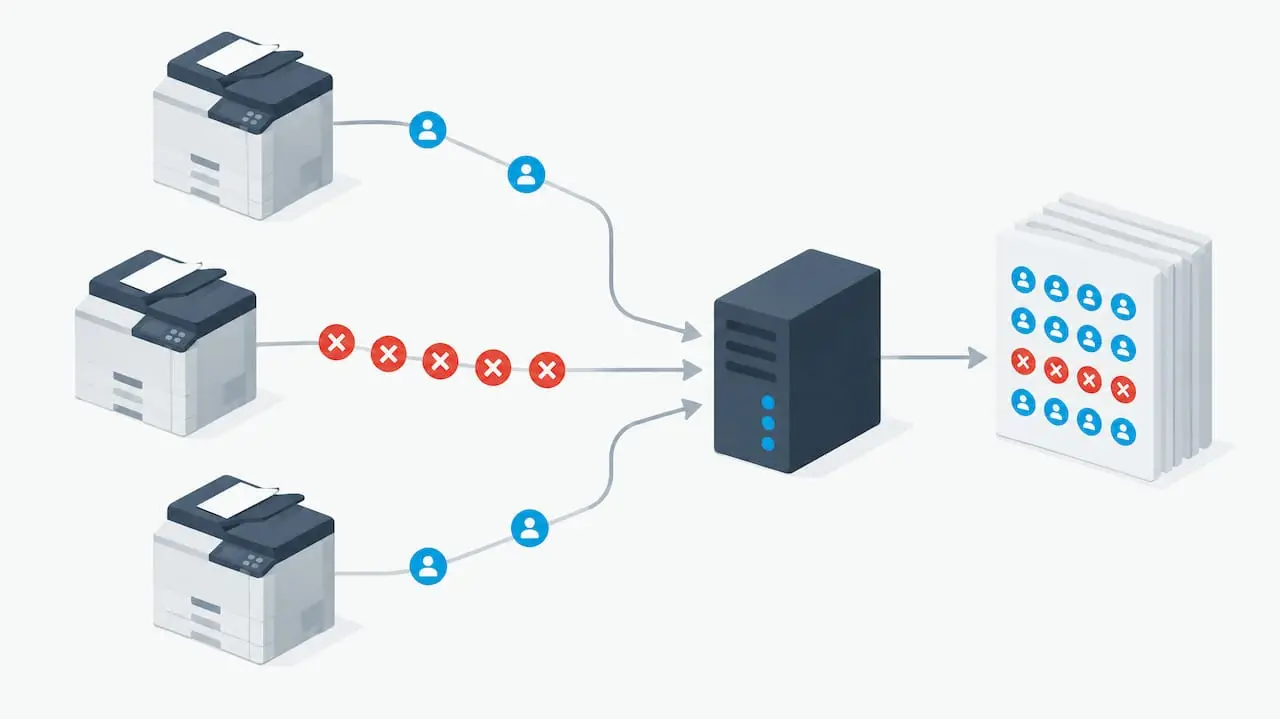
Hardening a printer once is not the same as keeping it secure. Configuration changes, failed admin logins, firmware updates, unusual print bursts and scan-to-folder transfers should all feed into logs that someone actually reviews, ideally through a SIEM or PSA platform with a defined playbook for each alert type.
- Log and review admin configuration changes, failed authentication attempts and firmware update events.
- Flag unusual printing volumes or scan-to-folder activity that could indicate data exfiltration.
- Schedule regular vulnerability scans against printer firmware and management interfaces, not just servers and workstations.
As part of our managed services, we fold printer monitoring into the same continuous oversight we apply to servers and endpoints, and our security services extend vulnerability scanning and threat assessment to networked devices that often get left off the audit list.
Pro Tip: Ask whoever manages your print fleet for a monthly export of admin login attempts; a spike in failed logins on a printer is an early warning sign that gets missed far more often than the same pattern on a server.
Implementation checklist: a 30/60/90 day plan
Turning this guide into practice works best as a staged rollout rather than a single project. We suggest the following timeline for most mid-sized IT teams.
- Days 0-3: Complete the printer inventory, block exposed management interfaces at the firewall, and change every default credential.
- Weeks 1-4: Apply critical firmware updates, enable secure-release printing on confidential queues, and implement VLAN segmentation.
- Months 1-3: Replace end-of-support devices, finalise a written printer security policy, train staff on secure-release workflows, and run a tabletop exercise to test incident response for a printer-related breach.
Each stage should produce something measurable: a completed inventory, a patched firmware baseline, a segmented network, or a tested response plan, rather than an open-ended commitment with no clear finish line.
Author perspective: common mistakes and quick wins
The same two mistakes turn up repeatedly: default credentials left untouched for years, and no asset list that includes printers at all. Both are fixable in an afternoon. Centralising output onto managed MFDs with secure release tends to produce the fastest visible win, because it solves leakage and access control in one move. When pitching this to stakeholders, a small pilot on one floor, with before-and-after figures on exposed ports or failed logins, persuades far more effectively than a policy document ever will.
— Carl
LANCAST offering: managed services for printer security
Printer security tends to fall through the cracks between the network team and whoever orders the toner, which is exactly the gap our managed IT services are built to close. We bring continuous monitoring, scheduled firmware audits and documented disposal planning into the same oversight we already provide for servers and workstations, so printers stop being the device nobody checks.

- We run firmware and configuration audits as part of ongoing managed services support.
- Our printer, photocopier and MFD maintenance service covers repair, upgrades and replacement planning for ageing devices.
- Our security services extend vulnerability management and threat assessment to networked printers alongside the rest of your infrastructure.
If you want a clearer picture of where your printer fleet stands today, our managed services page is the place to start a conversation about Silver, Gold or Platinum Support and what fits your estate.
FAQ
How do I make my printer secure?
Start by changing default administrator credentials, restricting the management interface to a dedicated network, and applying the latest firmware. From there, segment the printer from core systems and enable secure-release printing for any confidential output.
Does my printer need security?
Yes. A networked printer is a computer with storage, a network interface and often outdated firmware, which makes it a realistic route into the wider network if left unconfigured. Treating it as an endpoint, rather than an appliance, is the safest starting point.
Can I password protect my printer?
Most business printers support an administrator password for the management interface and, on many models, PIN or card-based release for individual print jobs. Changing the default admin password and enabling secure release are two separate but equally important steps.
Why am I getting a security warning on my printer?
Security warnings usually relate to an outdated firmware version, an expired certificate, or a configuration setting such as an open remote management port. Check the device’s firmware status first, since unsupported firmware is one of the most common triggers for this kind of alert.