
The recommended approach for enterprise Windows 11 deployment is to assess device readiness, pilot a representative cohort, and then automate the broader rollout through Windows Autopilot and Intune, or MECM where imaging control is required. Start today by running an inventory and eligibility scan that captures TPM, UEFI Secure Boot, CPU, RAM and storage against Microsoft’s requirements, since these prerequisites determine which devices can upgrade in place and which need replacing.
TL;DR:
- Check TPM 2.0, UEFI Secure Boot, a compatible 64 bit processor, 4 GB RAM, 64 GB storage, application compatibility, and enrollment licensing before assigning devices.
- Use Autopilot and Intune for cloud provisioning, MECM for driver control or local dependencies, and WDS or MDT at disconnected sites.
- Choose a pilot cohort spanning hardware, critical applications, and a difficult network location; define thresholds, capture logs, and rehearse rollback before wider waves.
- Windows 11 receives annual feature updates and monthly security updates; test both through staged rings, and match support planning to each edition’s lifecycle.
Table of Contents
- Assess readiness: inventory, compatibility and licensing
- Choose a deployment method: in-place upgrade, Autopilot provisioning, imaging and network services
- Prepare images and automation: build, customise and test your image
- Provisioning tooling explained: Autopilot, Intune, WDS and MECM in practice
- Pilot and validation: runbooks, telemetry and acceptance criteria
- Servicing and update strategy: monthly patches, feature updates and servicing channels
- Security, compliance and platform readiness: TPM, BitLocker, Entra and Defender
- Rollout, monitoring and rollback: phased waves, observability and support handover
- LANCAST perspective: how a managed services partner supports enterprise Windows 11 deployments
- What enterprise IT teams get wrong about Windows 11 deployment
- How LANCAST can help with your Windows 11 rollout
- FAQ
- Sources
Assess readiness: inventory, compatibility and licensing
A reliable Windows 11 deployment starts with knowing exactly what you have, not what your asset register says you have. We treat the inventory phase as the foundation that every later decision rests on: get it wrong here and the pilot inherits the problem.
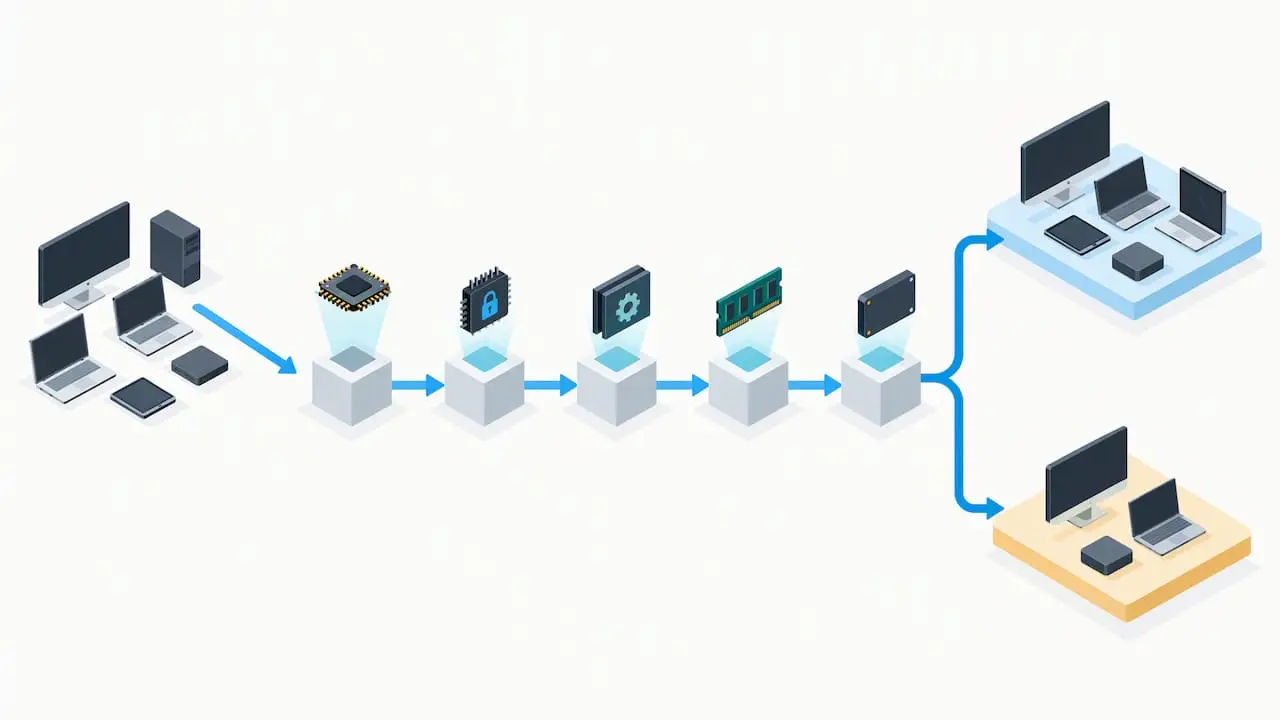
Run a scan across the estate using the PC Health Check tool, the Windows Assessment and Deployment Kit, or Configuration Manager hardware inventory reports, depending on what’s already deployed in your environment. Each scan should capture processor model and generation, TPM version and activation state, UEFI firmware mode (not legacy BIOS), free disk space, installed RAM and current BIOS or firmware version. Microsoft’s minimum specification requires a compatible 64-bit processor with two or more cores running at 1 GHz or faster, 4 GB of memory, 64 GB of storage, UEFI with Secure Boot, and TPM 2.0, and any device falling short on these points needs a decision made before it goes anywhere near a pilot ring.
Application compatibility deserves equal attention. Line-of-business software, custom macros and older peripherals with 32-bit drivers are the usual culprits behind failed upgrades, so test critical applications against a Windows 11 image before committing a business unit to the schedule.
Licensing also needs a second look: confirm your Windows 11 edition entitlements and check that Microsoft Entra ID and Intune licensing covers the devices you plan to enrol, since these underpin Autopilot registration later in the process.
From here, sort devices into three groups:
- Eligible for in-place upgrade, with no hardware changes required.
- Needing a firmware update (TPM activation, UEFI mode switch) before eligibility.
- Requiring replacement, where the hardware simply cannot meet the baseline.
Choose a deployment method: in-place upgrade, Autopilot provisioning, imaging and network services
No single method suits every cohort, and trying to force one onto the whole estate is where most timelines slip. The right choice depends on device state, user disruption tolerance, network capacity and how much control you need over the final build.
In-place upgrades suit devices that already meet requirements and carry a clean application set; they preserve user data and settings and need the least coordination. Windows Autopilot paired with Intune suits new or wiped devices destined for a zero-touch, cloud-managed experience, particularly for distributed or remote workforces. Image-based deployment through Windows Deployment Services or MECM remains the stronger option when you need tight control over the base build, driver packages or a mixed fleet with legacy on-premises dependencies.
Weigh these criteria when assigning a method to a device group:
- Scale and timeline: Autopilot suits phased, self-service onboarding; imaging suits large synchronous batches.
- Device condition: clean, compliant devices upgrade in place; non-compliant or end-of-life hardware gets reimaged or replaced.
- Network bandwidth: image-heavy deployments need scheduling around available bandwidth, especially across branch links.
- User disruption: in-place upgrades minimise downtime; full reimaging requires planned outage windows.
Reimaging becomes necessary when a device carries unresolved configuration drift, failed prior upgrades, or when you’re consolidating onto a new standard build rather than carrying legacy settings forward.
Prepare images and automation: build, customise and test your image
A well-built image is the difference between a rollout that scales smoothly and one that generates a support ticket per device. Build your base image from a clean Windows 11 source, then layer in language packs, required inbox apps, driver packages and line-of-business software in a repeatable, scripted way rather than manual customisation.
Keep the image hardware-agnostic wherever possible. Separate driver packages from the core image and apply them at deployment time based on detected hardware, rather than baking device-specific drivers into one monolithic build; this means a new laptop model doesn’t force a full image rebuild. Provisioning packages and feature flags can handle smaller device-specific adjustments without touching the base image at all.
For unattend and automation essentials, work through this sequence:
- Define disk partitioning and BitLocker pre-provisioning settings in the unattend file or provisioning package.
- Embed enrolment tokens or Autopilot profile references so devices self-register on first boot.
- Script inbox app removal and LOB application installation as post-OOBE tasks.
- Validate the build against a representative hardware sample before wider use.
- Version and store the finished image in a controlled repository with a change log.
Treat the image like software: version it, store build artefacts centrally, and automate the build pipeline so a new image can be produced on demand rather than assembled by hand each time a model changes.
Pro Tip: Keep a rollback copy of the previous validated image until the new one has passed at least one full pilot wave.
Provisioning tooling explained: Autopilot, Intune, WDS and MECM in practice
Choosing the right tool mix matters more than choosing a single “best” one, because most enterprise estates end up running at least two of these in parallel.
Windows Autopilot registers devices by hardware hash, either uploaded by the OEM, captured with the Get-WindowsAutopilotInfo.ps1 script, or exported in bulk from Configuration Manager for existing fleets, and ties that registration to an Autopilot profile in Intune. Autopilot itself carries no extra hardware requirement beyond what Windows 11 already demands; the prerequisites are device registration, Microsoft Entra or Intune enrolment, and a configured profile.
Intune, or Microsoft Intune as part of Endpoint Manager, then takes over compliance policy, configuration profiles, app deployment and update ring management for the device’s lifetime, giving you a single console for post-provisioning governance.
MECM (formerly SCCM) remains the stronger choice where you need granular imaging control, complex driver management across mixed hardware generations, or on-premises task sequences that Autopilot’s cloud-native model doesn’t cover. It’s also the tool most large estates already have invested in, which matters for licensing and operational continuity.
WDS and MDT still have a place in network-based imaging for legacy scenarios, particularly air-gapped environments or sites with limited cloud connectivity where Autopilot’s internet dependency isn’t practical.
A few points worth weighing as you plan tooling:
- Autopilot suits new and wiped devices destined for cloud-first management.
- Intune handles ongoing compliance, configuration and update rings once a device is enrolled.
- MECM suits complex imaging, driver management and hybrid on-premises requirements.
- WDS/MDT covers network imaging for legacy or disconnected sites.
- Hybrid co-management, running MECM and Intune together, suits organisations migrating gradually from on-premises to cloud-first management without a disruptive cutover.
Pilot and validation: runbooks, telemetry and acceptance criteria
A pilot only earns its place if it produces a decision, not just a demonstration. Select a cohort that represents your hardware diversity, your most demanding applications and at least one difficult network location, rather than picking the easiest users in the building.
Define measurable success criteria before the pilot starts: acceptable boot time range, maximum tolerable application failure rate, minimum update success rate and a target for device experience (DEX) metrics such as crash frequency and login time.
Run the pilot as a structured sequence:
- Preflight check every pilot device against the inventory data gathered earlier.
- Stage provisioning in waves of manageable size rather than all at once.
- Capture logs continuously, including setup diagnostics and MDM event logs.
- Rehearse rollback on at least one device to confirm the recovery path actually works.
- Review findings against your acceptance criteria before approving broader rollout.
Feed every finding back into the image and policy set immediately, rather than batching fixes for a later release, since a second pilot wave with the same defect erodes confidence fast.
Pro Tip: Treat update success rate as your single clearest pilot health signal: a drop there usually surfaces other problems before users report them.
Servicing and update strategy: monthly patches, feature updates and servicing channels
Windows 11 follows an annual feature update cadence and monthly cumulative security updates, and support windows vary by edition, so your servicing policy needs to match the edition mix actually deployed rather than a single assumed timeline.
Windows Update for Business lets you stage rollout through deployment rings, holding feature updates back from broad deployment until they’ve cleared a pilot ring and a broader validation ring. Treat every monthly cumulative update the same way: test in the pilot ring first, then release in phases rather than to the whole estate simultaneously.
Watch for these common servicing failure modes:
- Servicing stack mismatches that block a cumulative update from applying cleanly.
- WUSA failures when installing
.msupackages from a network share rather than a local path. - Dependency conflicts when multiple
.msufiles need sequencing through DISM.
One documented case, a failure installing the January 2026 cumulative update KB5074109, was addressed by running DISM /ScanHealth and /RestoreHealth, confirming the Servicing Stack Update was present, and installing the standalone .msu locally with wusa.exe rather than rebuilding the device. If a servicing regression looks widespread rather than isolated, check Microsoft’s release-health page before assuming it’s a local fault.
Maintain a documented emergency update policy for out-of-band security fixes, with a defined approval path that bypasses the standard ring schedule when a vulnerability demands it.
Security, compliance and platform readiness: TPM, BitLocker, Entra and Defender
Security configuration works best when it’s built into provisioning rather than bolted on afterwards. Confirm TPM 2.0 is enabled (not just present) and UEFI Secure Boot is active as part of your firmware baseline check, before a device ever reaches imaging.
Automate BitLocker enablement and Windows Hello for Business enrolment as provisioning steps rather than manual post-setup tasks; our guide to deploying endpoint encryption safely covers the sequencing that avoids leaving devices unencrypted during the gap between first boot and policy application.
A few checks worth building into every provisioning run:
- Confirm Microsoft Entra ID enrolment completes before applying conditional access policies, so devices aren’t left in a partially trusted state.
- Verify Defender, or your chosen EDR platform, reports in before the device leaves the provisioning queue; our notes on EDR deployment with Intune cover the sensor health checks worth automating.
- Set audit logging and incident response policy expectations at the same time as device policy, not as an afterthought.
Rollout, monitoring and rollback: phased waves, observability and support handover
A rollout plan succeeds or fails on how well you can see what’s happening and how quickly you can respond when something isn’t. Design waves by business unit, location or device type rather than by convenience, and communicate each wave’s timing to affected teams well before it starts.
Follow this sequence through each wave:
- Confirm the wave’s device list against updated inventory and pilot-approved criteria.
- Schedule deployment outside peak business hours where bandwidth or disruption is a concern.
- Monitor update success rate, boot time and application failure telemetry in real time during the wave.
- Route failures to a defined triage path, with clear escalation from first-line support to the deployment team.
- Hold a go/no-go checkpoint before starting the next wave.
Set rollback conditions in advance rather than deciding under pressure: a failure rate above your pilot-defined threshold, a critical application outage, or a security control that hasn’t applied correctly are all valid triggers to pause and reimage rather than push forward.
Once the full rollout completes, run a post-rollout review against your original success criteria and feed the findings into the image and runbook for the next deployment cycle.
Pro Tip: Keep support ticket categories aligned to your telemetry dashboards, so a spike in one maps directly to a known rollout wave.
LANCAST perspective: how a managed services partner supports enterprise Windows 11 deployments
Our managed services align closely with the deployment lifecycle instead of treating Windows 11 as a one-off project. Discovery and inventory work sits alongside our existing managed services, image build and Autopilot onboarding draw on our Microsoft Cloud Service Provider status, and Intune configuration and device provisioning continue under the same support relationship once the rollout finishes.
Continuous monitoring after deployment helps catch failed updates or misapplied policies quickly, reducing incident volume after a large rollout.
As an HP Amplify Partner and Microsoft Cloud Service Provider, we handle procurement, lifecycle planning and licensing in the same engagement, so a hardware refresh and a software rollout don’t run as two disconnected projects.
What enterprise IT teams get wrong about Windows 11 deployment
The conventional advice on Windows 11 deployment leans heavily on compatibility checklists and not nearly enough on what a pilot is actually for. Too many teams treat the pilot as a formality to clear before the “real” rollout, rather than as the stage where acceptance criteria get tested against reality. A pilot that doesn’t produce a measurable go or no-go decision isn’t a pilot: it’s a delay with extra paperwork.
The other place conventional wisdom falls short is automation. Manual imaging still gets treated as the safe, controllable option, when in practice it’s the slower path that introduces more configuration drift, not less. Repeatable, scripted provisioning through Autopilot or MECM task sequences produces more consistent outcomes precisely because it removes the manual steps where mistakes creep in.
If we had to prioritise one thing for a reader starting this project today, it’s building the inventory and compatibility picture properly before touching any tooling decision. Everything downstream depends on that data being right.
— Carl
How LANCAST can help with your Windows 11 rollout
Planning and running a Windows 11 deployment alongside day-to-day IT demands is where most internal teams lose momentum, particularly when the estate spans multiple sites or device generations. We run the discovery, piloting and provisioning work as part of our managed services, so your team keeps oversight without carrying the full operational load.

Our support tiers scale from proactive monitoring through to full infrastructure management, and deployment engagements are scoped against the device count, hardware mix and timeline involved.
- Inventory, pilot design and provisioning via Autopilot or MECM can be handled as a single engagement.
- Continuous monitoring after rollout catches update and policy failures early.
- Hardware procurement and lifecycle planning are coordinated through industry partnerships.
If you’re planning a Windows 11 rollout and want a scoped proposal rather than a guess at effort, get in touch through our managed services page to arrange a discovery call.
FAQ
When did Windows 11 deploy?
Windows 11 has an annual feature update cadence plus monthly cumulative security updates; support windows and current servicing details are maintained on the Windows 11 release information page.
What are the steps of deployment?
A typical enterprise deployment runs through assessment and inventory, application compatibility testing, image and automation build, pilot validation against defined acceptance criteria, and then phased rollout with monitoring and rollback triggers in place. Each stage produces a decision that gates the next one rather than running on a fixed calendar alone.
How do I force my PC to install Windows 11?
A device needs to meet the minimum hardware requirements first, including TPM 2.0, UEFI Secure Boot and a compatible 64-bit processor, and bypassing these checks on unsupported hardware isn’t something we’d recommend for a managed enterprise fleet. For eligible devices, an in-place upgrade through Windows Update, Autopilot or MECM task sequences is the supported route.
Is Windows Server still a thing?
Yes, Windows Server remains a distinct, actively developed product line from Windows 11, used for server workloads rather than endpoint devices, and the deployment practices in this guide apply to client devices rather than server infrastructure. Server upgrade and support planning follow their own separate release and servicing cycle.