

SharePoint permissions control who can see, edit, share and delete the content in your Microsoft 365 environment. They work well when you build them on groups and a sensible site structure, and they go wrong when they are set person by person, file by file, and never reviewed. This guide explains how the model works, how to set it up so it stays manageable, and how Teams governance fits in, based on what we see when we support Irish organisations.
TL;DR
- Permissions flow down from site to library to folder to file. Break that inheritance sparingly, because every exception is something you have to track later.
- Grant access to groups, never to individuals, and use the Microsoft 365 group behind a team site rather than editing SharePoint groups directly.
- Sharing links create their own access, so audit links as well as site and folder permissions.
- Treat permissions as a process: a joiner, mover and leaver routine plus a scheduled review, which is also what the ICO expects.
- Set naming, ownership and expiry rules for Teams and groups before they multiply.
Table of Contents
- How SharePoint permissions actually work
- Why unique permissions cause trouble
- Design the structure before you set the permissions
- Sharing links are a second permission system
- Teams governance: where SharePoint permissions really come from
- Permissions and your data protection duties
- A review routine that fits a small IT team
- Common mistakes we are asked to fix
- Our view on SharePoint permissions
- How we can help
- FAQ
- Sources
How SharePoint permissions actually work
Three ideas explain most of what you see on screen: permission levels, groups and inheritance.
A permission level is a bundle of rights, such as Read, Edit or Full Control. A group is a collection of people who share the same level. Inheritance means that a library takes its permissions from the site above it, and a folder or file takes them from the library. Microsoft describes this in its guide to understanding permission levels in SharePoint, and it also gives the advice most administrators should follow: use the built-in SharePoint groups for communication sites, and manage team site permissions through the associated Microsoft 365 group.
That last point matters because a team site is not a standalone thing. It sits behind a Microsoft 365 group, and the same group governs the Teams team, the shared mailbox and the Planner plans. If you add someone through SharePoint’s advanced settings while everything else runs through the group, you create a second place where access is defined, and in a year nobody remembers why that person is there.
The three roles on a team site
On a modern team site, owners, members and visitors map to Full Control, Edit and Read. Most business problems begin when people who only need to read documents are made members, because members can change and delete content. When a user asks for “access”, ask which of the three they actually need. Visitor is often enough, and it is the least likely to cause a recovery call later.
Why unique permissions cause trouble
SharePoint allows you to stop inheritance at any level and give a single folder or file its own list of people. That is useful for a genuinely confidential folder, such as HR case files or board papers. It becomes a liability when it is used as a habit.
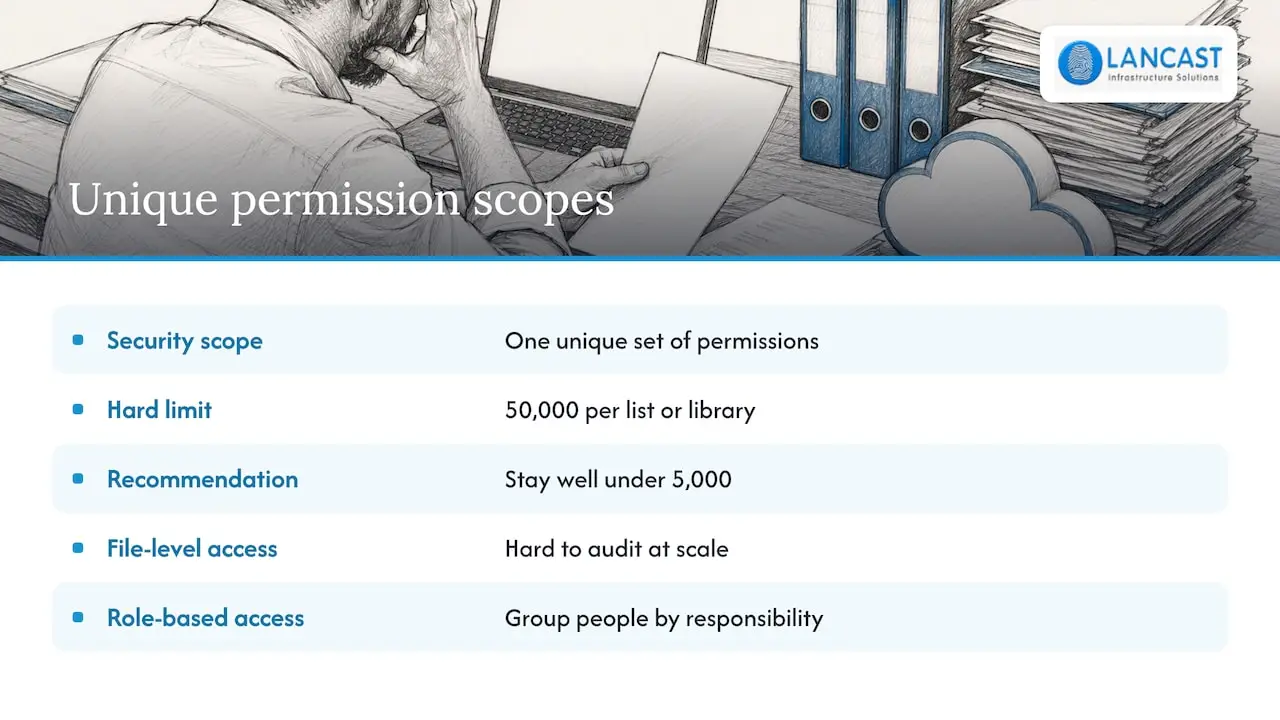
Each unique set of permissions is a security scope. Microsoft’s documentation sets a limit of 50,000 unique security scopes per list or library and recommends staying well under 5,000 for performance and manageability. Most small and medium businesses will never approach the hard limit. The practical problem arrives much sooner: when two hundred folders each have a different list of people, no one can answer the simple question “who can see the finance folder?” without opening each one.
The NCSC makes a related point in its guidance on using SaaS securely. It advises against relying on file-level permissions, which are hard to audit at scale, and recommends role-based access, where people are grouped by responsibility. Change the group once and every member’s access updates with it.
Design the structure before you set the permissions
Permissions are only as good as the structure they sit on. The NCSC’s introduction to identity and access management makes the point that access control is a policy decision as much as a technical setting, and that forcing complex security rules onto a badly organised site hierarchy is a common source of failure.
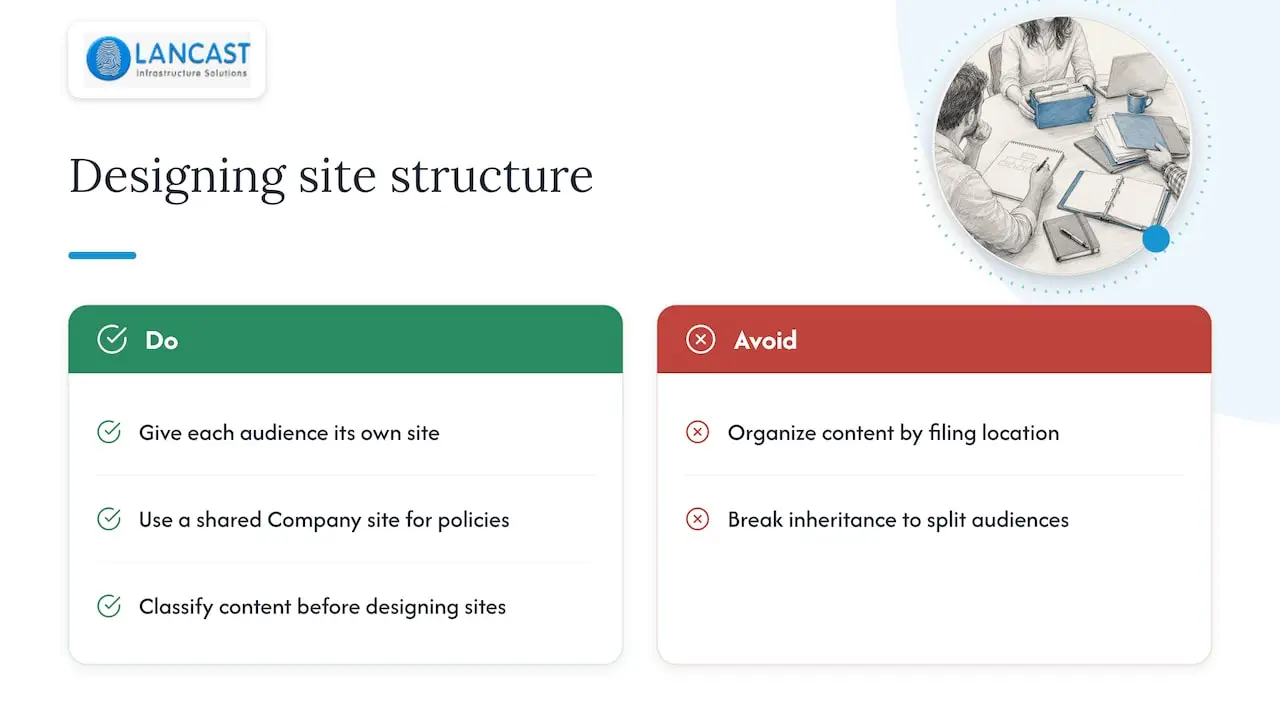
In practice, that means separating content by who should see it, not by how it is filed. A few examples we see regularly in Irish firms:
One site per audience. Finance, HR and management usually get their own sites, because their content has a different audience from the rest of the business. A shared “Company” site holds policies and templates that everyone reads.
Folders for organisation, sites for security. If a folder needs a different audience from its parent, that is usually a signal that it belongs in its own site or library, not that it needs broken inheritance.
Classify first. Deciding what is public, internal, confidential and restricted makes the site design obvious. A data classification guide written for ISO 27001 projects is a useful reference for the thinking, even if you are not pursuing certification.
A worked example
Take a 40-person professional services firm. Staff are in four teams: accounts, projects, HR and management. We would create a site for each team, each backed by a Microsoft 365 group with two or three owners and the rest as members. A separate, read-only communication site holds the staff handbook and policies. External clients who need a deliverable get access to one dedicated library through guest accounts, not through links sent from personal folders.
The result is that “who can see the HR site?” has a one-line answer: the HR group. When someone moves from projects to accounts, you change two group memberships, and nothing else.

Sharing links are a second permission system
This is the part many administrators miss. When someone shares a file or folder with a link, SharePoint creates access for that item that sits alongside the normal site and library permissions. As a Microsoft Q&A thread on driveItem permissions and shared links discusses, link access and inherited access are not the same thing, and a person with one may not have the other.
A full picture of who has access to a sensitive folder therefore needs three checks: the site and library permissions, any items with unique permissions, and the active sharing links.
Set the organisation-wide sharing level deliberately
External sharing is set at the organisation level in the SharePoint admin centre, and individual sites can be made more restrictive but not more permissive. Microsoft explains this in its page on managing sharing settings for SharePoint and OneDrive. The practical advice:
- Avoid “Anyone” links unless you have a specific, reviewed reason, because they work without sign-in and can be forwarded freely.
- Prefer links limited to specific people, so access is tied to an identity you can see and remove.
- Set the organisation level to what most of the business needs, then tighten the sites that hold sensitive content.
- Consider expiry dates on guest access and on links for time-limited projects.
The NCSC encourages organisations to move towards a zero-trust approach, where access depends on more than a username and password, for example a managed device and a trusted network. We cover what that means for a smaller business in our zero trust security guide for Irish businesses, and multi-factor authentication is the first step, as set out in our MFA for Microsoft 365 checklist.
Teams governance: where SharePoint permissions really come from
If your business uses Microsoft Teams, then most of your SharePoint permissions are created by Teams, not by an administrator. Every team creates a group and a SharePoint site, and every private channel can create its own site as well. Without rules, the number of teams and sites grows quickly, and so does the number of places where access has to be maintained. Our guide to Microsoft Teams setup for business covers the initial design; here is the governance layer on top.
Who may create teams
Decide whether anyone can create a team or whether requests go through IT or a nominated person. For a business under fifty people, open creation with a naming policy often works. Larger organisations tend to prefer a short request process, which also gives you the chance to ask who the owners are and how sensitive the content is.
Naming policy
A naming policy in Microsoft Entra ID adds a prefix or suffix to group names, for example the department or a project code, and can block certain words. It does two jobs: people can find the right team, and you can tell at a glance whose it is when you review it. Keep it short. A prefix for the department and a clear purpose is enough, and a policy that needs a manual to follow will be ignored.
Ownership
Every team needs at least two owners. A team with a single owner becomes an orphan the day that person leaves. Owners are the people who approve membership, so they should be managers or team leads, not whoever happened to create the team.
Lifecycle and expiry
Teams are easy to start and rarely closed. Microsoft 365 offers a group expiration policy that asks owners to renew inactive groups. If a group is not renewed it is soft-deleted, and it can be recovered for 30 days. Because the SharePoint site, mailbox and team go with it, plan this carefully, tell owners what to expect, and make sure your backups cover Microsoft 365 data. Our note on the one-year retention limit in Microsoft 365 backup explains why the built-in safety net is narrower than many people assume.
A workable lifecycle for a project team looks like this: created with two owners and a purpose, reviewed every six or twelve months, archived when the project closes, and deleted after a defined period once the records have been moved to their permanent home.
Permissions and your data protection duties
If your sites hold personal data, which for most businesses means HR records, customer files and payroll, permissions are part of your compliance position, not just housekeeping. The ICO’s guidance on access controls in records management expects an access control policy, access assigned on the basis of documented job roles, and a process for provisioning and removing access when people join, move or leave. The ICO framework also points to periodic checks on privileged accounts, and to end dates for temporary access such as contractors.
Irish organisations are governed by the GDPR and the Data Protection Act 2018, and the regulator here is the Data Protection Commission. The ICO is the UK regulator, but its published audit toolkits are detailed and practical, which is why we reference them as a benchmark for good practice. If you are unsure how your obligations apply to a specific data set, speak to your data protection officer or legal adviser.
The ICO’s wider guidance on records management and security adds the same principle in a sentence: access to personal information should be limited to authorised staff, and rights reviewed regularly.
A review routine that fits a small IT team
Permissions drift because people change roles and nobody tells IT. A routine beats a clean-up project. This is the cycle we recommend:
- Joiner: add the person to the groups for their role, never to individual sites or files.
- Mover: remove the old group memberships on the same day you add the new ones. This is where permission creep starts.
- Leaver: disable the account and remove group memberships on the last day, and check for files shared externally by that person.
- Quarterly: review the owners of every team and site, and any guests who have not signed in recently.
- Twice a year: review sensitive sites (HR, finance, management) and any item with unique permissions or sharing links.
It is less disruptive than it sounds, and our article on how to audit user access without disrupting work sets out a lightweight way to do it. Reports of role assignments and inactive accounts also help; one useful angle on checking roles before drawing conclusions from usage analytics is worth reading if you manage Microsoft 365 administrators.
Common mistakes we are asked to fix
Everyone is a member. The default is to add people as members. For read-only content, use visitors.
“Everyone except external users” on sensitive sites. This convenient setting makes a site visible to the whole tenant. It is rarely what the owner intended.
Broken inheritance with no record. Someone made a folder private two years ago and left. Keep a short register of exceptions and who approved them.
Guests who never leave. External collaborators are added for a project and stay indefinitely.
Migration without a permissions plan. Moving a file server into SharePoint copies the folder habits across, including years of accumulated access. Our guide to Microsoft 365 migration for growing businesses and cloud migration checklist cover how to restructure as you move, not afterwards.
Our view on SharePoint permissions
After thirty years supporting businesses, our observation is that permission problems are rarely technical. SharePoint does exactly what it is told. The trouble starts when the business grows, people move, and the structure nobody designed becomes the structure everyone relies on.
We would rather help a client spend a day designing five sites and a handful of groups than spend a month untangling five hundred exceptions. We also think the most valuable permission control in a small business is a named owner for every site who is accountable for who is in it. Tools can report on access, but only an owner knows whether it is still right.
As a Microsoft Cloud Service Provider, we usually start with a short review of what exists today: who owns what, where inheritance is broken, which links are live, and what the sharing settings allow. From there we agree a structure and a review rhythm that your team can maintain, with us as an extension of that team where you want the support.
— Carl
How we can help
If you would like a second pair of eyes on your Microsoft 365 structure, our IT consultancy and Microsoft 365 services cover permissions design, Teams governance and migration. Where you want ongoing oversight, our managed support plans combine proactive monitoring with remote and onsite help, and our security services include vulnerability management and threat risk assessment. Pricing is agreed to fit your environment, so get in touch and we will scope it with you.
FAQ
What are the different SharePoint permission levels?
The standard levels are Full Control, Design, Edit, Contribute and Read, with some additional ones such as Limited Access that SharePoint applies automatically. On modern team sites most people only see owner, member and visitor, which map to Full Control, Edit and Read. Use the Microsoft 365 group for team sites and the built-in groups for communication sites.
How do I give someone access to a SharePoint site?
For a team site, add the person to the Microsoft 365 group as a member or owner, or as a visitor through the site’s permissions page. Avoid sharing individual files when the real need is ongoing access to a site. If you need to create a custom group, Microsoft’s page on customising SharePoint site permissions walks through the steps, and you need Full Control to do it.
How do I see who has access to a file or folder?
Open the item’s Manage access panel to see direct access and sharing links, then check the parent library and site permissions. Remember that links and inherited permissions are separate, so you need both views for a full answer.
Should I break permission inheritance?
Only when a specific folder needs a genuinely different audience and it is not practical to move it to its own library or site. Record each exception and its owner. Too many of them make reviews slow and mistakes more likely.
Sources
- Understanding permission levels in SharePoint, Microsoft Learn
- Customize SharePoint site permissions, Microsoft Learn
- Manage sharing settings for SharePoint and OneDrive, Microsoft Learn
- Do driveItem permissions get inherited onto shared links, Microsoft Q&A
- Microsoft 365 group expiration policy, Microsoft Learn
- Using SaaS securely, NCSC
- Introduction to identity and access management, NCSC
- Access, ICO records management toolkit
- Records management and security, ICO